
Qwen Image Edit Angles
Transform any photo by generating new camera angles with precise control over rotation, tilt, and zoom. Perfect for creating product shots from different perspectives or exploring architectural views from a single reference image.
Overview
| Property | Value |
|---|---|
| Provider | Qwen / Alibaba |
| Cost | 150 credits |
| Modality | Image Tool |
| Prompt Required | No |
| Output | Image |
What It's Best For
- Product photography — Generate multiple angles from one product shot
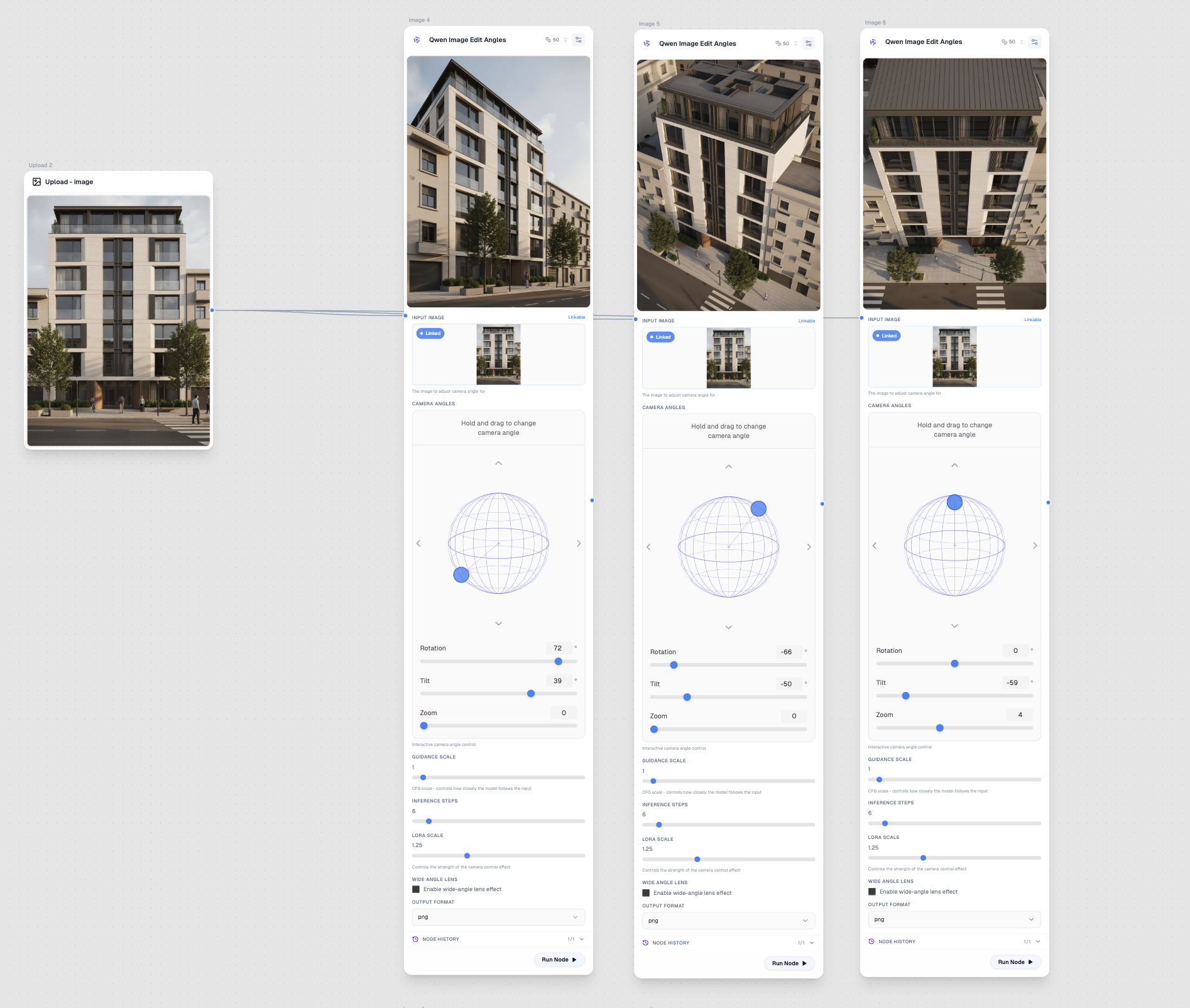
- Architecture visualization — View buildings from different perspectives
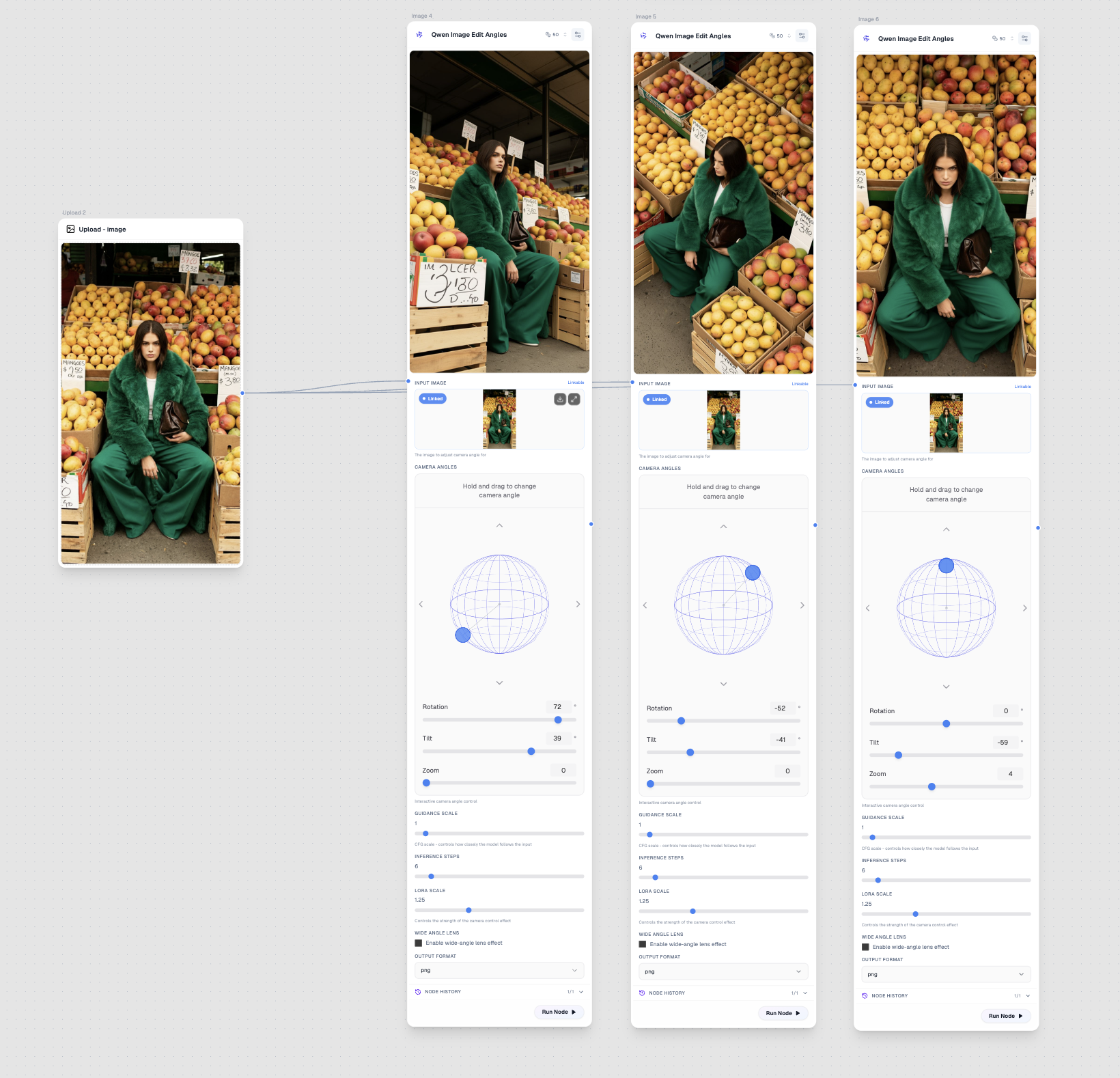
- Fashion photography — Create dynamic angle variations from static shots
- Real estate — Show properties from various viewpoints
- 3D-like transformations — Add depth and perspective to flat images
Inputs
Input Image (Required)
The source image to transform. Works best with clear subjects and defined edges.
Connection Color: Blue (Image)
Configuration
Camera Angles
Type: Interactive 3D Control
The main control for this model. Use the interactive globe widget to set:
| Control | Range | Description |
|---|---|---|
| Rotation | -180° to 180° | Horizontal rotation (left/right perspective) |
| Tilt | -90° to 90° | Vertical tilt (up/down perspective) |
| Zoom | -10 to 10 | Zoom in or out from the subject |
Tip: Drag on the globe to adjust rotation and tilt simultaneously, or use the sliders for precise control.
Guidance Scale
Type: Slider
Range: 0 - 20
Default: 1
Controls how closely the model follows the input image. Lower values allow more creative interpretation, higher values stay closer to the original.
Inference Steps
Type: Slider
Range: 2 - 50
Default: 6
More steps can produce finer details but take longer. 6 steps is usually sufficient for good results.
LoRA Scale
Type: Slider
Range: 0 - 4
Default: 1.25
Controls the strength of the camera angle transformation effect. Higher values create more dramatic perspective changes.
Wide Angle Lens
Type: Toggle
Default: Off
Enable to simulate a wide-angle lens effect, adding more dramatic perspective distortion similar to fisheye lenses.
Output Format
Type: Select
Options: png, jpeg, webp
Default: png
Output
Type: Image
Connection Color: Blue
The transformed image with the new camera angle applied.
Use Cases
Product Photography
Create a complete product catalog from a single hero shot:
- Upload your best product photo
- Generate variations at rotation: -30°, 0°, 30°
- Add slight tilt variations for dynamic angles
Architecture Visualization
Explore building designs from multiple viewpoints:
- Upload an architectural render or photo
- Use tilt to show aerial or ground-level views
- Combine rotation to show corner perspectives
Fashion & Portrait
Add movement and dynamism to static photos:
- Start with a straight-on portrait or fashion shot
- Apply subtle rotation (15-30°) for three-quarter views
- Use slight tilt for more dramatic angles
Real Estate Marketing
Maximize a single property photo:
- Upload your best interior or exterior shot
- Generate corner views to show room depth
- Create multiple angles for virtual tours
Tips for Best Results
- Start with good source images — Clear, well-lit photos with defined subjects work best
- Keep angles realistic — Extreme rotations (90°+) may produce artifacts
- Use moderate LoRA scale — Start with 1.25 and adjust based on results
- Combine with other tools — Use upscaling after angle transformation for best quality
- Wide angle for interiors — Enable wide-angle lens for interior architecture shots
Workflow Example
Upload Node (Product Photo)
    ↓
Qwen Image Edit Angles (Rotation: -30°)
    ↓
Qwen Image Edit Angles (Rotation: 0°)
    ↓
Qwen Image Edit Angles (Rotation: 30°)
    ↓
Crystal Upscaler (for final polish)
Related Models
- Qwen Image — Text-to-image generation
- Flux Kontext Max — 3D transformations with context
- Crystal Upscaler — Enhance image quality