
What are Apps?
Apps are one of Armox's most powerful features. They let you transform complex Canvas workflows into simple, reusable tools that anyone can use with a single click.
The Problem Apps Solve

The Apps page showing your created Apps ready to run.
Imagine you've created the perfect workflow:
[Text Prompt] → [AI Enhance] → [Image Gen] → [BG Remove] → [New BG] → [Upscale]
It works great, but:
- 😓 You have to open the Canvas every time
- 😓 You need to remember which nodes to edit
- 😓 Team members don't know how to use it
- 😓 It takes many clicks to run
Apps solve this. They turn your workflow into a simple form:
┌─────────────────────────────────┐
│  Product Photo Generator        │
│                                 │
│  Product Name: [___________]    │
│  Upload Photo: [Choose File]    │
│                                 │
│  [✨ Generate]                  │
└─────────────────────────────────┘
What is an App?
An App is a simplified interface for a Canvas workflow:
| Canvas | App |
|---|---|
| Multiple nodes visible | Clean, simple form |
| Many settings to configure | Only essential inputs |
| Requires Canvas knowledge | Anyone can use it |
| Manual node connections | Automatic execution |
Key Benefits
- 🚀 One-click generation — No Canvas navigation needed
- 👥 Team-friendly — Anyone can use it without training
- 🔄 Reusable — Run the same workflow with different inputs
- 💾 Saved settings — Your workflow configuration is preserved
- 📱 Simple interface — Clean, focused input form
How Apps Work
Behind the Scenes
When you create an App:
- Your Canvas workflow is saved — All nodes, connections, and settings
- You choose which inputs to expose — What users can change
- Everything else is hidden — Complexity stays behind the scenes
When Someone Runs the App
- They fill in the exposed inputs
- Click "Generate"
- The full workflow runs automatically
- Results appear in a clean gallery
App Components
Every App has:
Inputs
The fields users fill in:
- Text inputs — Prompts, descriptions, names
- Image uploads — Photos, references
- Video uploads — Clips to process
- Audio uploads — Sound files
Workflow (Hidden)
Your complete Canvas workflow runs behind the scenes:
- All nodes execute in order
- All settings you configured are used
- Complex processing happens automatically
Outputs
The generated results:
- Images appear in a gallery
- Videos with play controls
- Audio with players
- All downloadable
Use Cases for Apps
Personal Productivity
Create Apps for your own repeated tasks:
- Daily social media posts — Same style, different content
- Client deliverables — Consistent format, new inputs
- Content variations — Same workflow, different prompts
Team Tools
Share Apps with your team:
- Marketing team — Generate on-brand visuals
- Sales team — Create custom presentations
- Content team — Produce consistent assets
Client Deliverables
Create Apps for clients:
- Self-service tools — Clients generate their own content
- Branded generators — Locked-in brand style
- Scalable solutions — One workflow, unlimited outputs
Apps vs Canvas
When to use each:
| Use Canvas When | Use Apps When |
|---|---|
| Building new workflows | Running existing workflows |
| Experimenting with settings | Production content generation |
| One-time generations | Repeated tasks |
| Learning and exploring | Efficient execution |
| Complex, unique projects | Standardized outputs |
App Examples
Product Photo Generator
Inputs:
- Product name (text)
- Product photo (image upload)
- Background style (text)
Workflow (hidden):
Upload → BG Remove → Flux Kontext → Upscaler
Output: Professional product photo with custom background
Social Media Post Creator
Inputs:
- Post topic (text)
- Brand name (text)
- Preferred style (text)
Workflow (hidden):
Text → AI Enhance → Image Gen → Filters
Output: On-brand social media visual
Video Ad Maker
Inputs:
- Product description (text)
- Product image (image upload)
- Music style (text)
Workflow (hidden):
Text → Video Gen ← Image
Audio Gen → Combine
Output: Short video ad with music
Getting Started with Apps
Ready to create your first App?
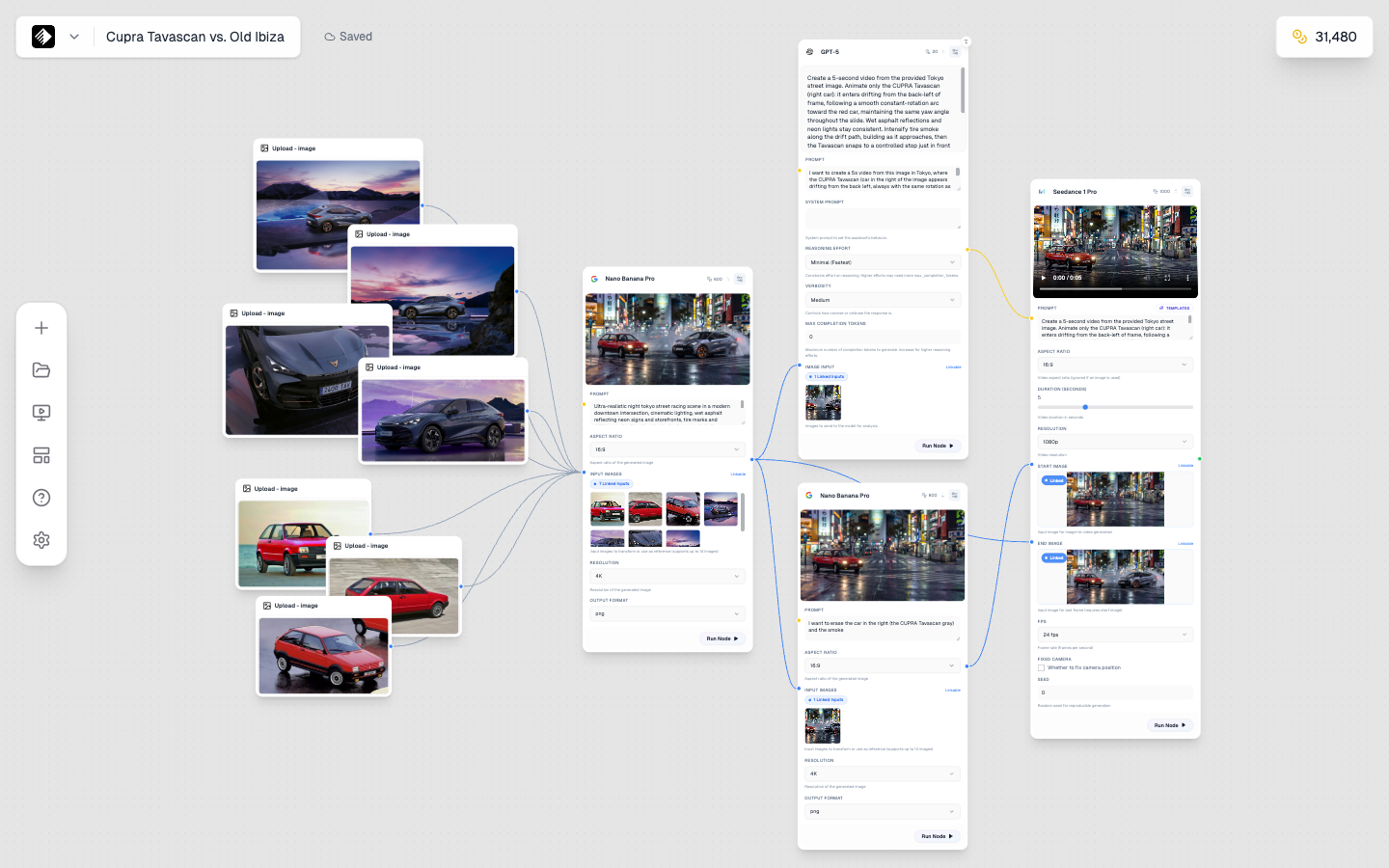
Start by building your workflow in the Canvas with all the nodes connected.
- Build your workflow in Canvas
- Test it thoroughly — Make sure it works
- Open App Builder — From the Canvas toolbar
- Configure inputs — Choose what users can change
- Save and use — Your App is ready!
Next Steps
- Building Your First App — Step-by-step guide
- Running Apps — How to use Apps
- App Ideas for Creatives — Inspiration for your Apps