
Understanding Brains
Brains are the foundation of how you organize your work in Armox. Think of a Brain as your creative command center—a place where your brand identity, generated content, and AI context all come together.
What is a Brain?
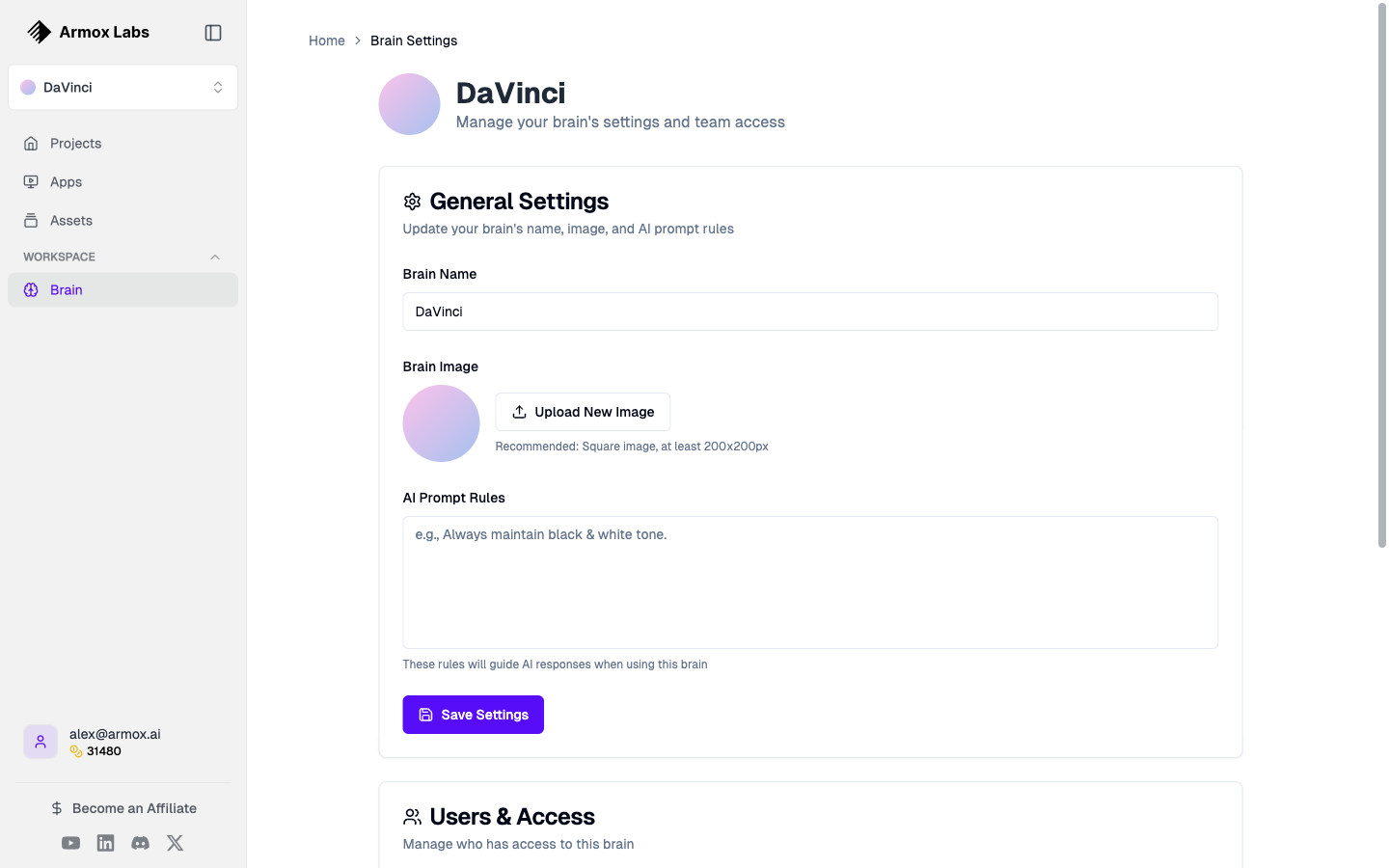
The Brain settings page where you configure your brand identity and preferences.
A Brain in Armox represents a brand, project, or creative context. It's where you:
- 🏢 Define your brand — Company name, voice, and personality
- 🎨 Store your content — All generated images, videos, and audio
- 📊 Organize projects — Keep different clients or projects separate
- 👥 Collaborate — Share access with team members
When you first sign up, Armox automatically creates your first Brain based on your name (e.g., "Alex's Brain").
Why Use Multiple Brains?
If you work with multiple brands or projects, separate Brains help you:
| Use Case | Benefit |
|---|---|
| Agency work | Keep each client's content separate |
| Multiple brands | Different brand voices and styles |
| Personal vs. work | Separate creative experiments from client work |
| Team projects | Share specific projects with specific people |
Creating a New Brain
From the Sidebar
- Click the Brain selector in the sidebar (shows your current Brain name)
- Click + Add Brain
- Enter a name for your Brain (e.g., "Acme Corp" or "Summer Campaign")
- Optionally add team member emails to share access
- Click Create
What Gets Created
When you create a new Brain, you get:
- A fresh workspace with no existing content
- Default brand voice settings (which you can customize)
- Your own private Gallery for that Brain
- Separate Canvas projects
Switching Between Brains
To switch to a different Brain:
- Click the Brain selector in the sidebar
- Select the Brain you want to work with
- The interface updates to show that Brain's content
💡 Tip: Your Canvas projects, Gallery, and Apps are all specific to the currently selected Brain.
Brain Settings
Each Brain has settings you can customize:
Basic Information
- Company Name — The name of the brand or project
- Website — Optional URL for context
- Logo — Upload an image to represent this Brain
Brand Voice
Configure how AI should communicate for this brand:
| Setting | What It Controls |
|---|---|
| Serious ↔ Funny | Tone of generated content |
| Casual ↔ Formal | Level of professionalism |
| Cheeky ↔ Respectful | Attitude in messaging |
| Matter-of-fact ↔ Enthusiastic | Energy level |
Brand Attributes
Add keywords that describe your brand personality:
- "Professional"
- "Innovative"
- "Friendly"
- "Bold"
- "Minimalist"
These attributes help AI understand your brand when generating content.
Editing Brain Settings
To update your Brain's settings:
- Click the Brain selector in the sidebar
- Click the gear icon next to your Brain name, or
- Navigate to Brain Settings from the menu
- Update your settings and save
Sharing Brains with Team Members
You can invite others to collaborate on a Brain:
Adding Team Members
- Go to your Brain settings
- Find the Team Members section
- Enter email addresses (comma-separated for multiple)
- Click Invite
What Team Members Can Do
Team members with access to a Brain can:
- ✅ View all content in the Gallery
- ✅ Create and edit Canvas projects
- ✅ Run Apps associated with the Brain
- ✅ Generate new content
Access Levels
Currently, all team members have equal access to a shared Brain. More granular permissions may be available in future updates.
Brain-Specific Content
Everything you create is tied to a specific Brain:
| Content Type | Brain-Specific? |
|---|---|
| Canvas projects | ✅ Yes |
| Generated images | ✅ Yes |
| Generated videos | ✅ Yes |
| Generated audio | ✅ Yes |
| Apps | ✅ Yes |
| Chat history | ❌ No (personal) |
Best Practices
Naming Conventions
Use clear, descriptive names:
- ✅ "Acme Corp - 2024 Campaigns"
- ✅ "Personal Creative Lab"
- ✅ "Client: TechStartup Inc"
- ❌ "Brain 2"
- ❌ "New Project"
When to Create a New Brain
Create a new Brain when:
- Starting work with a new client
- Launching a new brand or product line
- Beginning a distinct project with its own identity
- Wanting to keep content completely separate
When to Use the Same Brain
Keep using the same Brain when:
- Creating variations of existing content
- Working on related campaigns for the same brand
- Building on previous creative work
Deleting a Brain
⚠️ Warning: Deleting a Brain permanently removes all associated content, including Canvas projects, generated assets, and Apps.
To delete a Brain:
- Go to Brain settings
- Scroll to the bottom
- Click Delete Brain
- Confirm the deletion
This action cannot be undone.
Frequently Asked Questions
Can I move content between Brains?
Currently, content cannot be moved between Brains. You would need to download assets and re-upload them to a different Brain.
How many Brains can I create?
There's no limit to the number of Brains you can create. Create as many as you need to stay organized.
Do Brains affect my credit usage?
No, credits are tied to your account, not to individual Brains. You can use your credits across all your Brains.
Can I rename a Brain?
Yes, you can rename a Brain at any time in the Brain settings.
Next Steps
Now that you understand Brains, learn about:
- Nodes — The building blocks of your Canvas workflows
- The Canvas Editor — Your visual workflow workspace
- AI Models — The AI models powering your generations