
Text Nodes
Text nodes are the foundation of most Armox workflows. They're where you write prompts, generate copy, and create the text content that drives your AI generations.
What Are Text Nodes?
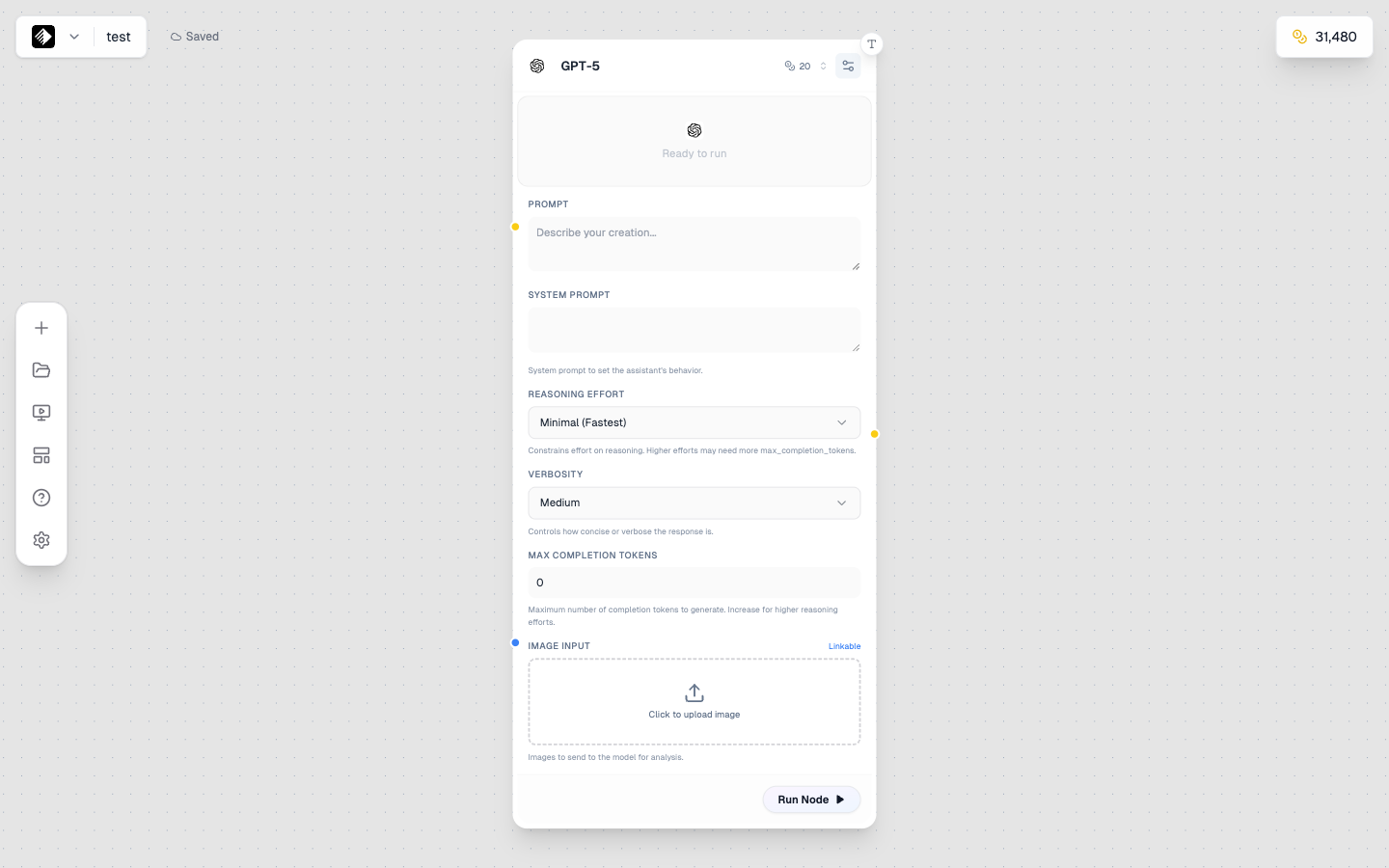
A Text node using GPT-5 for AI-powered text generation.
Text nodes handle all text-based content in your workflows. They can:
- ✍️ Store text you type manually
- 🤖 Generate text using AI language models
- 🔗 Pass text to other nodes as prompts
Two Modes
Text nodes operate in two modes:
Manual Mode
Type your own text directly into the node.
Use for:
- Writing prompts for image/video generation
- Fixed text that doesn't change
- Quick, simple workflows
AI Mode
Use an AI language model to generate or refine text.
Use for:
- Generating creative copy
- Expanding or refining ideas
- Creating variations
- Brainstorming
Adding a Text Node
- Open the node sidebar on the left
- Find Text in the list
- Drag it onto your canvas (or click to add)
Manual Mode Settings
When in manual mode, you'll see:
| Element | Purpose |
|---|---|
| Text Area | Where you type your content |
| Mode Toggle | Switch to AI mode |
| Output Handle | Connect to other nodes (yellow circle on right) |
Writing Good Prompts
When using text nodes for prompts, remember:
- Be specific about what you want
- Include style and mood keywords
- Add technical details for better results
- See Prompt Engineering for detailed guidance
AI Mode Settings
When in AI mode, you'll see:
| Setting | Purpose |
|---|---|
| Model | Choose the AI language model |
| System Prompt | Guide the AI's behavior |
| User Prompt | Your request to the AI |
| Temperature | Creativity level (higher = more creative) |
Available Models
| Model | Credits | Best For |
|---|---|---|
| GPT-5 | 20 | General purpose, excellent quality |
| Gemini 2.5 Flash | 10 | Fast, good for iteration |
| Claude 4.5 Sonnet | 30 | Creative writing, nuanced content |
| DeepSeek V3.1 | 10 | Cost-effective, good quality |
| Grok 4 | 20 | Conversational, witty |
| Llama 3 70B | 14 | Open source, versatile |
| Llama 3 8B | 2 | Very fast, budget-friendly |
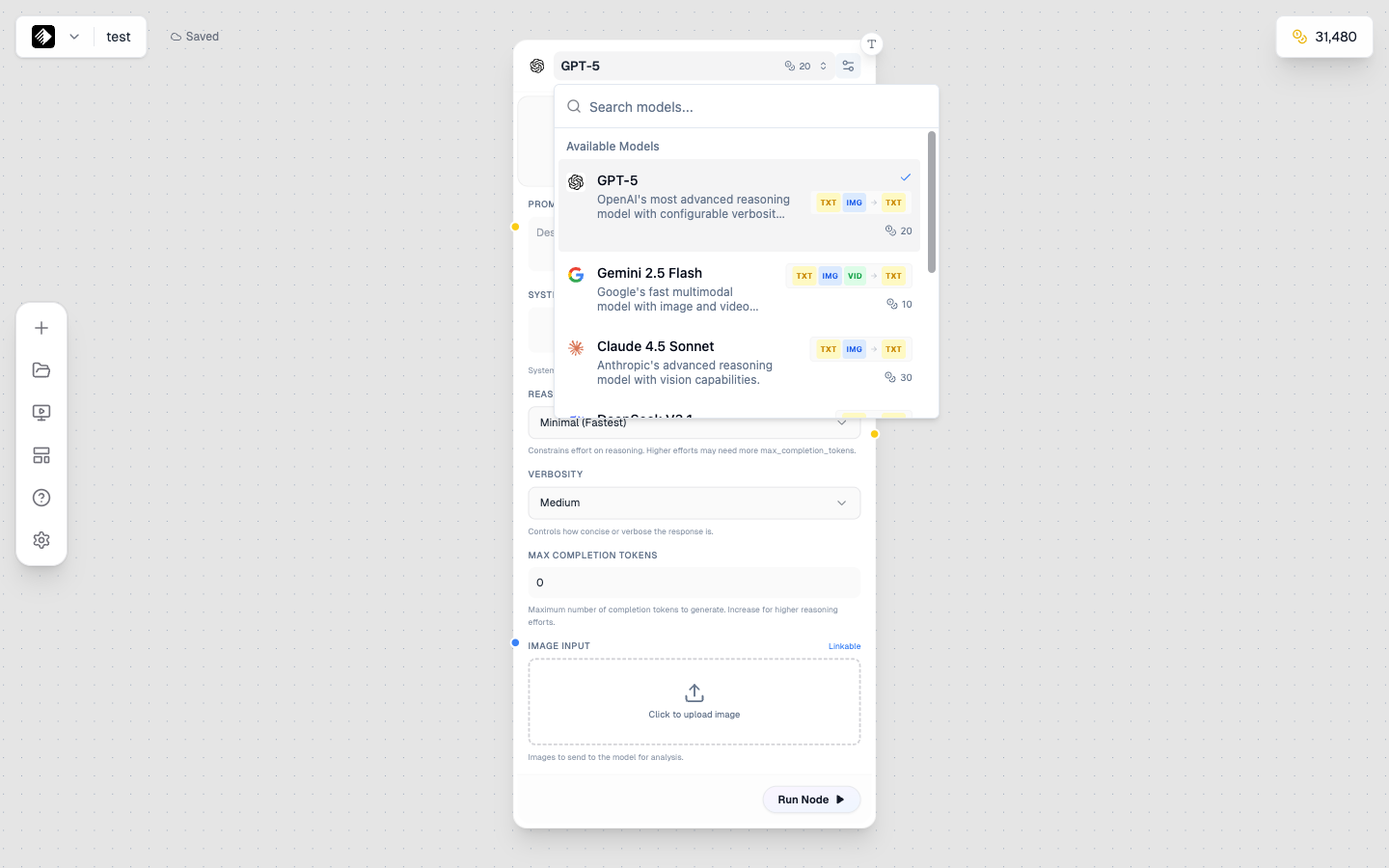
The model selector showing all available text AI models.
Using AI Mode
Step 1: Set Up the System Prompt
The system prompt tells the AI how to behave:
You are a creative marketing copywriter.
Write engaging, concise content that captures attention.
Step 2: Write Your Request
In the user prompt, describe what you want:
Write a compelling product description for a
luxury smartwatch targeting young professionals.
Step 3: Adjust Temperature
- Low (0.1-0.3) — More focused, predictable
- Medium (0.5-0.7) — Balanced creativity
- High (0.8-1.0) — More creative, varied
Step 4: Run the Node
Click the play button to generate text.
Connecting Text Nodes
Text nodes output yellow connections that can connect to:
Image Nodes
Send your text as a prompt for image generation:
[Text Node] → [Image Node]
Your prompt → Generated image
Video Nodes
Send your text as a prompt for video generation:
[Text Node] → [Video Node]
Your prompt → Generated video
Audio Nodes
Send your text for text-to-speech or music prompts:
[Text Node] → [Audio Node]
Your script → Generated speech
Other Text Nodes
Chain text nodes for multi-step text processing:
[Text Node 1] → [Text Node 2]
Initial idea → Refined/expanded version
Workflow Examples
Simple Prompt Workflow
[Text Node (Manual)] → [Image Node]
"A sunset over mountains" → Generated image
AI-Enhanced Prompt
[Text Node (Manual)] → [Text Node (AI)] → [Image Node]
"sunset mountains" → "Dramatic sunset over snow-capped mountains, golden hour light, cinematic photography" → Generated image
Copy Generation
[Text Node (AI)]
System: "You are a social media expert"
User: "Write 5 Instagram captions for a coffee brand"
→ Generated captions
Tips for Text Nodes
For Manual Mode
- ✅ Keep prompts clear and specific
- ✅ Use line breaks for readability
- ✅ Include style keywords
- ❌ Don't write novels—be concise
For AI Mode
- ✅ Write clear system prompts
- ✅ Be specific in your requests
- ✅ Use lower temperature for consistency
- ✅ Use higher temperature for creativity
- ❌ Don't expect perfection on first try—iterate
For Connections
- ✅ Text can connect to almost any node type
- ✅ Chain multiple text nodes for complex processing
- ✅ Use AI text nodes to enhance manual prompts
Common Use Cases
Prompt Enhancement
Use AI to improve your basic prompts:
- Write a simple prompt in Manual Text Node
- Connect to AI Text Node with system prompt: "You are an expert at writing AI image prompts. Enhance this prompt with specific details, lighting, and style keywords."
- Connect enhanced output to Image Node
Content Generation
Generate marketing copy, captions, or descriptions:
- Set up AI Text Node with appropriate system prompt
- Request the content you need
- Copy output or connect to other nodes
Brainstorming
Generate multiple ideas:
- AI Text Node with system prompt: "You are a creative brainstorming assistant"
- Ask for multiple options: "Give me 10 different concepts for..."
- Use the best ideas in your workflow
Troubleshooting
Text Not Connecting
- Ensure you're dragging from the output (right) to input (left)
- Check that the target node accepts text input
AI Output Too Short/Long
- Adjust your prompt to specify length
- Try: "Write a 100-word description..." or "Keep it brief, 2-3 sentences"
AI Output Not What You Wanted
- Refine your system prompt
- Be more specific in your request
- Lower the temperature for more focused output
Next Steps
- Image Nodes — Connect your text to image generation
- Prompt Engineering — Write better prompts
- Connecting Nodes — Build complex workflows