
Image Nodes
Image nodes are where your visual creativity comes to life. They use AI models to generate images from text prompts or transform existing images.
What Are Image Nodes?
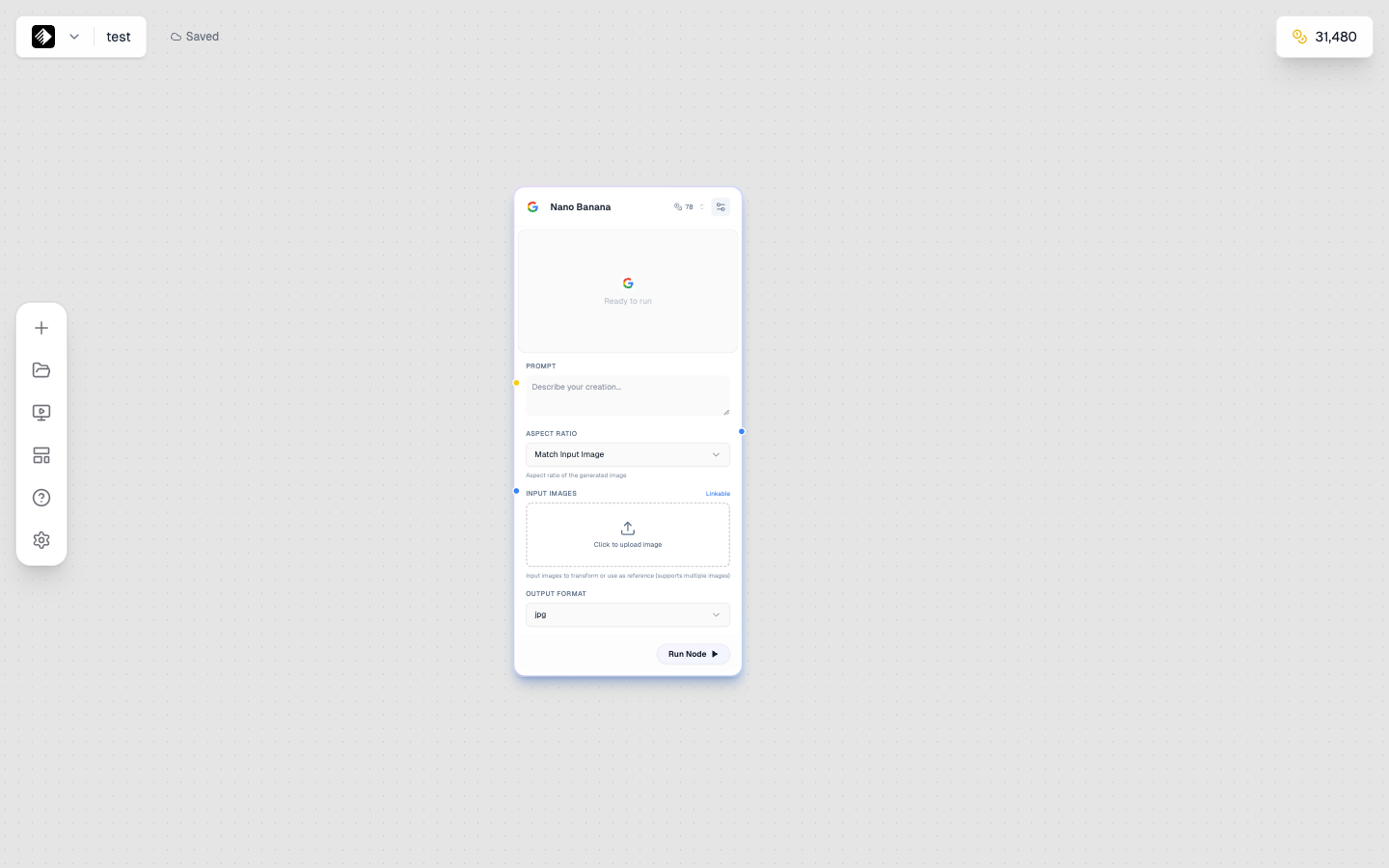
An Image node with the Nano Banana model selected for AI image generation.
Image nodes generate images using AI. They can:
- 🎨 Generate from text — Describe what you want, get an image
- 🖼️ Transform images — Use reference images to guide generation
- 📐 Control output — Set size, style, and quality
Adding an Image Node
- Open the node sidebar on the left
- Find Image in the list
- Drag it onto your canvas
Image Node Inputs
Image nodes accept these inputs:
| Input | Type | Required | Purpose |
|---|---|---|---|
| Prompt | Text (yellow) | Yes | Describes the image to generate |
| Reference Image | Image (blue) | No | Style or content reference |
Connecting a Prompt
- Add a Text Node with your prompt
- Drag from the Text Node's output to the Image Node's prompt input
- Or type directly in the Image Node's prompt field
Connecting a Reference Image
- Add an Upload Node with your reference image
- Drag from the Upload Node's output to the Image Node's image input
- The AI will use this as a reference
Image Node Settings
Model Selection
Choose from available AI models:
| Model | Credits | Best For |
|---|---|---|
| Qwen Image | 20 | Quick tests, iterations |
| SDXL | 40 | Artistic styles |
| Flux 2 Dev | 50 | Good quality, balanced |
| Nano Banana | 78 | Text in images |
| Flux 2 Pro | 120 | Professional quality |
| Flux Kontext | 120 | Image editing |
| Nano Banana Pro | 600 | Highest quality |

The model selector showing all available image AI models.
Aspect Ratio
Control the output dimensions:
| Ratio | Dimensions | Best For |
|---|---|---|
| 1:1 | Square | Instagram, profile pics |
| 16:9 | Landscape | YouTube, presentations |
| 9:16 | Portrait | Stories, TikTok |
| 4:5 | Portrait | Instagram feed |
| 3:2 | Landscape | Photography |
| 21:9 | Ultra-wide | Banners, headers |
Additional Settings
| Setting | Description |
|---|---|
| Guidance Scale | How closely to follow the prompt (higher = more literal) |
| Steps | Generation quality (more steps = better quality, slower) |
| Seed | Random seed for reproducibility |
| Style | Preset styles (varies by model) |
Text-to-Image Workflow
The most common workflow:
[Text Node] → [Image Node]
Your prompt → Generated image
Example
- Add a Text Node
- Write: "A cozy coffee shop interior, morning light, warm tones, photography"
- Add an Image Node
- Connect Text → Image
- Select model (e.g., Flux 2 Dev)
- Click Run
Image-to-Image Workflow
Use a reference image to guide generation:
[Upload Node] → [Image Node]
Reference image → Transformed image
Example: Style Transfer
- Add an Upload Node
- Upload your reference image
- Add an Image Node
- Connect Upload → Image (to the image input)
- Add a Text Node with style description
- Connect Text → Image (to the prompt input)
- Run to generate styled version
Example: Image Editing with Flux Kontext
- Upload your image to edit
- Use Flux Kontext Pro or Flux Kontext Max
- Prompt describes the change: "Change the background to a beach sunset"
- Run to get edited image
Model-Specific Features
Flux Models
- Excellent for photorealistic images
- Great text rendering
- Professional quality output
- Kontext variants for editing
Nano Banana
- Best for text in images
- Consistent multi-image generation
- Logical compositions
- Pro version for highest quality
SDXL
- Wide range of artistic styles
- Good for illustrations
- Many style presets
- Community model support
Understanding Settings
Guidance Scale
Controls how literally the AI follows your prompt:
| Value | Effect |
|---|---|
| 1-5 | Very creative, loose interpretation |
| 5-10 | Balanced creativity and accuracy |
| 10-15 | Closely follows prompt |
| 15+ | Very literal, may reduce quality |
Recommendation: Start with 7-10 for most uses.
Steps
More steps = higher quality but slower:
| Steps | Quality | Speed |
|---|---|---|
| 20-30 | Good | Fast |
| 30-50 | Better | Medium |
| 50+ | Best | Slow |
Recommendation: 30-40 steps for most uses.
Seed
The random seed controls reproducibility:
- Random (default) — Different image each time
- Fixed number — Same image with same prompt/settings
Use fixed seeds when you want to:
- Reproduce a specific result
- Make small prompt adjustments
- Create variations
Viewing Results
When generation completes:
- Preview appears in the node
- Click the preview to see full size
- Download button to save locally
- Image is auto-saved to your Gallery
Chaining Image Nodes
Connect image outputs to other nodes:
Image → Tool
[Image Node] → [Upscaler Tool]
Generated image → Higher resolution version
Image → Video
[Image Node] → [Video Node]
Generated image → Animated video
Image → Image
[Image Node 1] → [Image Node 2 (Kontext)]
Initial image → Edited version
Tips for Better Images
Prompt Tips
- Be specific about subject, setting, lighting
- Include style keywords
- Mention camera/photography terms for realism
- See Prompt Engineering
Model Selection
- Testing ideas → Qwen Image (cheap, fast)
- Artistic work → SDXL
- Professional output → Flux 2 Pro
- Text in images → Nano Banana
- Editing images → Flux Kontext
Quality Tips
- Use higher steps for final output
- Match aspect ratio to your use case
- Use reference images for consistency
- Iterate with cheap models, finalize with quality models
Common Issues
Image Doesn't Match Prompt
- Increase guidance scale
- Be more specific in prompt
- Try a different model
- Check for conflicting instructions
Image Quality Low
- Increase steps
- Use a higher-quality model
- Check aspect ratio (extreme ratios may reduce quality)
Text in Image Wrong
- Use Nano Banana or Nano Banana Pro
- Put text in quotes in your prompt
- Keep text short and simple
- Be explicit about text placement
Example Prompts by Use Case
Product Photography
Professional product photography of a luxury watch,
white background, soft studio lighting,
commercial quality, high detail
Social Media Content
Lifestyle photo of coffee and laptop on wooden desk,
morning sunlight through window, cozy atmosphere,
Instagram aesthetic, warm tones
Marketing Visual
Modern tech startup office, diverse team collaborating,
bright and professional, corporate photography style,
authentic and engaging
Next Steps
- Video Nodes — Animate your images
- Tool Nodes — Enhance your images
- Flux Models Prompting — Master Flux prompts