
Audio Nodes
Audio nodes add sound to your creative work. Generate background music, voiceovers, sound effects, and even clone voices.
What Are Audio Nodes?
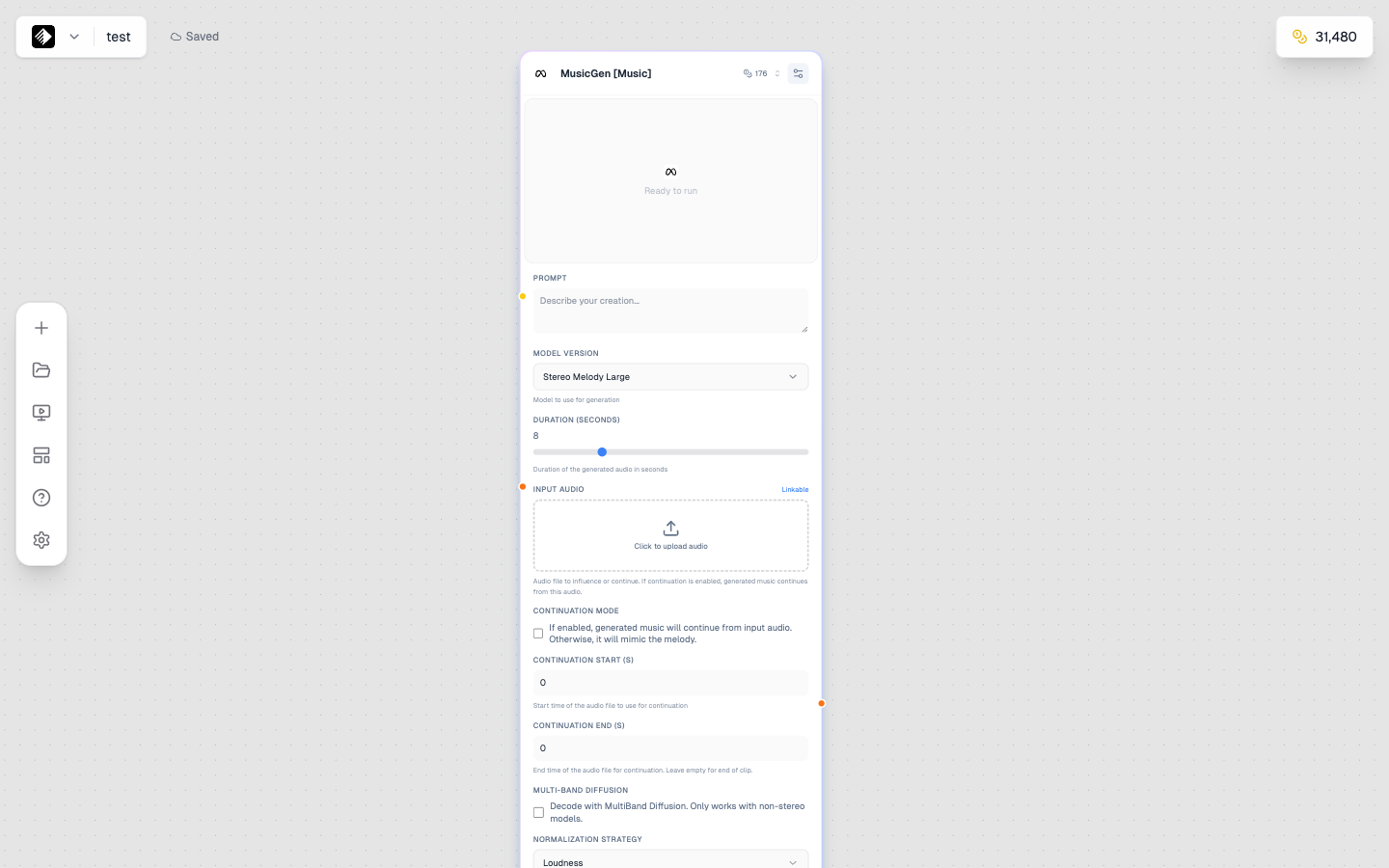
An Audio node using MusicGen for AI music generation.
Audio nodes generate sound using AI. They can:
- 🎵 Generate music — Background tracks, jingles, songs
- 🗣️ Create speech — Voiceovers, narration
- 🎙️ Clone voices — Replicate a voice from a sample
- 🔊 Make sounds — Sound effects, ambient audio
Adding an Audio Node
- Open the node sidebar on the left
- Find Audio in the list
- Drag it onto your canvas
Audio Node Inputs
| Input | Type | Required | Purpose |
|---|---|---|---|
| Prompt/Text | Text (yellow) | Yes | Description or script |
| Reference Audio | Audio (orange) | No | For voice cloning or style |
Audio Models
Music Generation
| Model | Credits | Best For |
|---|---|---|
| Music 1.5 | 48 | Quick background music |
| Lyria 2 | 120 | High-quality songs |
| MusicGen | 176 | Detailed compositions |
| Music-01 | 200 | Complex music |
Speech Generation
| Model | Credits | Best For |
|---|---|---|
| Speech-02 Turbo | 8 | Quick voiceovers |
| XTTS-v2 | 20 | Voice cloning |
| Speech-02 HD | 40 | High-quality speech |
Voice Tools
| Model | Credits | Best For |
|---|---|---|
| Voice Cloning | 100 | Clone any voice |
Music Generation
Generate original music from text descriptions.
Workflow
Prompt Template
[Text Node] → [Audio Node (Music)]
Music description → Generated music
Example
- Add a Text Node with music description:
Upbeat electronic music, energetic and modern, suitable for tech product video, driving beat, synth melodies - Add an Audio Node
- Select a music model (e.g., Music 1.5)
- Connect and run
Music Prompt Tips
Include these elements:
- Genre — "lo-fi hip hop," "cinematic orchestral"
- Mood — "uplifting," "mysterious," "relaxing"
- Instruments — "piano," "synths," "strings"
- Tempo — "slow," "upbeat," "moderate"
- Purpose — "background music," "intro jingle"
See Audio Prompting for detailed guidance.
Speech Generation (Text-to-Speech)
Convert text into spoken audio.
Workflow
Prompt Template
[Text Node] → [Audio Node (Speech)]
Your script → Spoken audio
Example
- Add a Text Node with your script:
Welcome to our product demonstration. Today, we'll show you how easy it is to create amazing content with AI. - Add an Audio Node
- Select Speech-02 Turbo or Speech-02 HD
- Connect and run
Speech Settings
| Setting | Description |
|---|---|
| Voice | Choose from available voices |
| Speed | Speaking pace |
| Pitch | Voice pitch adjustment |
| Language | Output language |
Voice Cloning
Replicate a specific voice from an audio sample.
Workflow
Prompt Template
[Upload Node (Audio)] → [Audio Node (Voice Clone)]
Voice sample → Cloned speech
Steps
-
Upload a voice sample
- Add an Upload Node
- Upload a clear audio file (10-30 seconds)
- Single speaker, no background noise
-
Add Audio Node
- Select XTTS-v2 or Voice Cloning model
- Connect the audio sample
-
Add your script
- Text Node with what you want said
- Connect to the Audio Node
-
Generate
- Run to create speech in the cloned voice
Voice Sample Requirements
| Requirement | Details |
|---|---|
| Length | 10-30 seconds ideal |
| Quality | Clear, noise-free |
| Speaker | Single voice only |
| Content | Natural speech |
Audio Node Settings
Duration
Control audio length:
| Use Case | Duration |
|---|---|
| Short jingle | 5-15 seconds |
| Background loop | 30-60 seconds |
| Full track | 60-180 seconds |
| Voiceover | Varies by script |
Quality Settings
| Setting | Effect |
|---|---|
| Sample Rate | Audio quality (higher = better) |
| Format | Output format (MP3, WAV) |
Viewing and Downloading
When generation completes:
- Audio player appears in the node
- Click play to preview
- Download button to save locally
- Audio is auto-saved to your Gallery
Combining Audio with Video
Method 1: In Armox
Some video models accept audio input:
Prompt Template
[Audio Node] → [Video Node]
Generated music → Video with audio
Method 2: External Editor
- Generate video in Armox
- Generate audio in Armox
- Download both
- Combine in video editor (Premiere, Final Cut, etc.)
Tips for Matching
- Generate audio after you know video duration
- Match audio mood to video content
- Consider generating music slightly longer than needed
Tips for Better Audio
Music Tips
- Be specific about genre and mood
- Include instrument preferences
- Specify tempo if important
- Mention the use case (video, podcast, etc.)
Speech Tips
- Write natural, conversational scripts
- Include punctuation for natural pauses
- Test with Turbo model first
- Use HD for final production
Voice Cloning Tips
- Use high-quality source audio
- Longer samples = better cloning
- Keep scripts natural to the voice
- Test with short phrases first
Common Issues
Music Doesn't Match Description
- Be more specific about genre
- Include more mood keywords
- Try a different model
- Simplify the description
Speech Sounds Unnatural
- Add punctuation for pauses
- Shorten long sentences
- Use more conversational language
- Try a different voice
Voice Clone Sounds Wrong
- Improve source audio quality
- Use a longer sample
- Ensure single speaker in sample
- Remove background noise from sample
Use Case Examples
YouTube Intro Music
Energetic electronic intro music,
10 seconds, catchy hook,
modern and professional,
suitable for tech channel
Podcast Voiceover
Welcome to The Creative Hour,
where we explore the intersection
of technology and creativity.
I'm your host, and today we're diving into...
Product Video Background
Corporate background music,
uplifting and professional,
moderate tempo, subtle and non-distracting,
suitable for product demonstration video
Meditation Audio
Peaceful ambient music,
very slow and calming,
soft pads and gentle nature sounds,
suitable for meditation or relaxation
Next Steps
- Audio Prompting — Master audio prompts
- Audio & Music Workflow — Complete audio creation
- Video Nodes — Combine audio with video