
Tool Nodes
Tool nodes process and enhance your content. Upscale images, remove backgrounds, swap faces, and apply effects—all powered by AI.
What Are Tool Nodes?
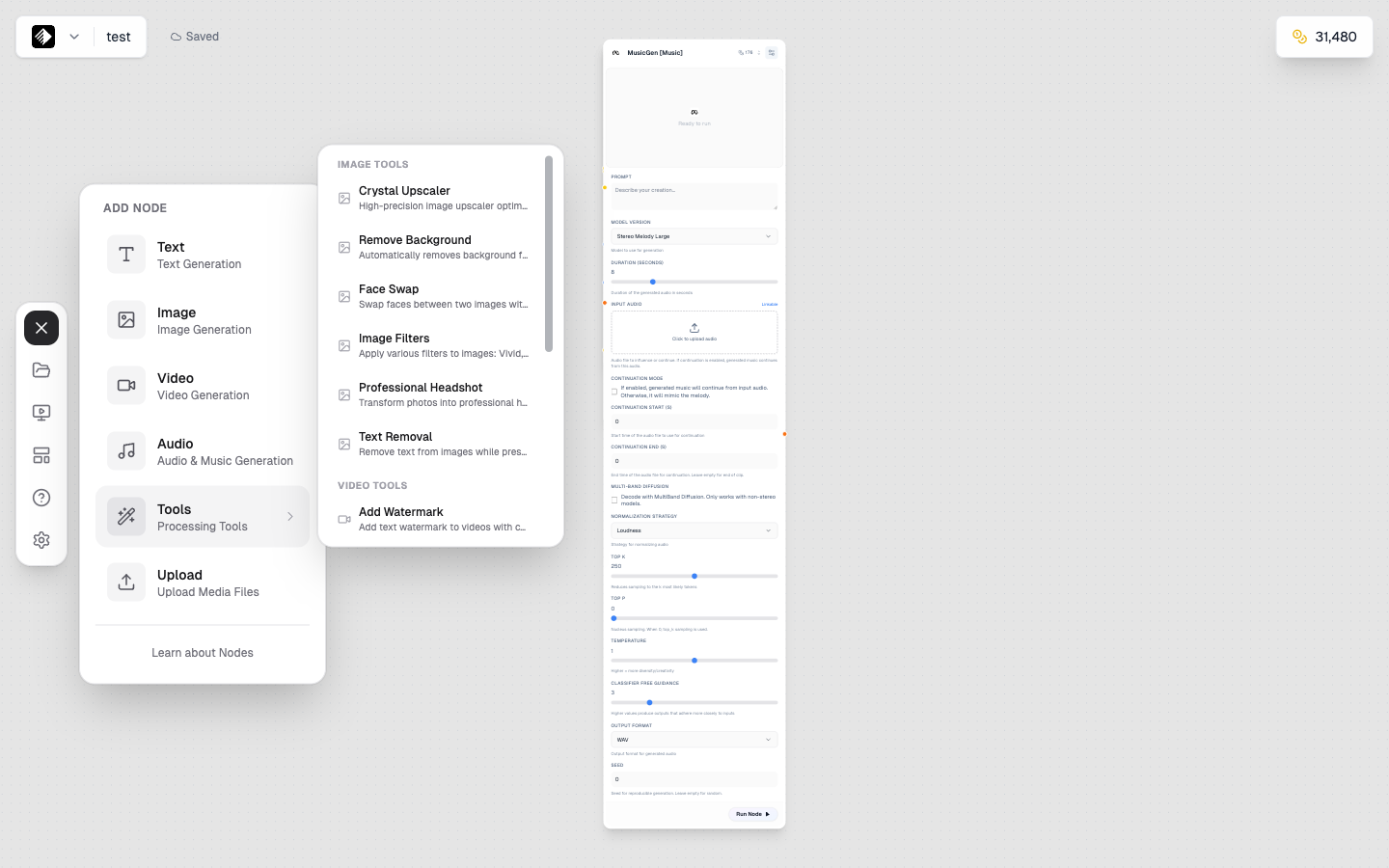
The Tools submenu showing Image Tools and Video Tools categories.
Tool nodes are specialized AI processors that transform existing content:
- 🔍 Upscale — Increase image resolution
- ✂️ Remove backgrounds — Isolate subjects
- 🎭 Swap faces — Replace faces in images
- 🎨 Apply filters — Add artistic effects
Unlike generation nodes, tool nodes work on existing content rather than creating from scratch.
Available Tools
Image Tools
| Tool | Credits | Input | Output | Purpose |
|---|---|---|---|---|
| Crystal Upscaler | 1,000 | Image | Image | Enhance resolution |
| Background Remover | 20 | Image | Image | Remove backgrounds |
| Face Swap | 40 | Image | Image | Swap faces |
| Image Filters | 20 | Image | Image | Apply effects |
Audio Tools
| Tool | Credits | Input | Output | Purpose |
|---|---|---|---|---|
| Voice Cloning | 100 | Audio | Audio | Clone a voice |
Adding a Tool Node
- Open the node sidebar on the left
- Find Tools section
- Select the specific tool you need
- Drag it onto your canvas
Crystal Upscaler
Enhance image resolution and detail.
What It Does
- Increases image resolution up to 4x
- Enhances details and sharpness
- Reduces artifacts and noise
- Maintains image quality
When to Use
- ✅ Final images for print or large displays
- ✅ Low-resolution source images
- ✅ Images that need more detail
- ❌ Not needed for web-only images
- ❌ Don't upscale before other processing
Workflow
Prompt Template
[Image Node] → [Crystal Upscaler]
Generated image → High-resolution version
Tips
- Upscale as the last step in your workflow
- Consider the 1,000 credit cost—only upscale finals
- Works best on already decent quality images
Background Remover
Remove backgrounds from images, leaving transparent areas.
What It Does
- Detects the main subject
- Removes the background
- Creates transparent PNG
- Preserves fine details (hair, edges)
When to Use
- ✅ Product photography
- ✅ Portrait isolation
- ✅ Creating composites
- ✅ Preparing images for other backgrounds
Workflow
Prompt Template
[Upload Node] → [Background Remover] → [Image Node]
Your photo → No background → New background added
Example: Product on New Background
- Upload product photo
- Connect to Background Remover
- Connect to Flux Kontext
- Prompt: "Place on marble surface, studio lighting"
Tips
- Works best with clear subject/background separation
- Complex backgrounds may need manual touch-up
- Good for e-commerce product images
Face Swap
Replace faces in images.
What It Does
- Detects faces in images
- Swaps one face for another
- Maintains lighting and angle
- Blends naturally
Inputs Required
| Input | Purpose |
|---|---|
| Target Image | The image where face will be replaced |
| Source Face | The face to use as replacement |
Workflow
Prompt Template
[Upload (Target)] → [Face Swap] ← [Upload (Source Face)]
Photo to modify → Face swapped result
Tips
- Use clear, front-facing photos for best results
- Similar lighting in both images helps
- Face angle should be somewhat similar
- Higher quality source = better results
Image Filters
Apply artistic effects and filters to images.
What It Does
- Applies preset artistic styles
- Transforms image aesthetics
- Creates stylized versions
- Quick visual effects
Available Filters
Filters vary but may include:
- Vintage/retro effects
- Color adjustments
- Artistic styles
- Enhancement presets
Workflow
Prompt Template
[Image Node] → [Image Filters]
Original image → Stylized version
Tips
- Preview different filters to find the right one
- Can be combined with other tools
- Good for quick aesthetic changes
Voice Cloning Tool
Clone a voice from an audio sample.
What It Does
- Analyzes voice characteristics
- Creates a voice model
- Generates new speech in that voice
- Maintains tone and style
Inputs Required
| Input | Purpose |
|---|---|
| Audio Sample | 10-30 seconds of the voice to clone |
| Script | Text to be spoken in cloned voice |
Workflow
Prompt Template
[Upload (Audio)] → [Voice Cloning] ← [Text Node (Script)]
Voice sample → Cloned speech
Best Practices
- Use clear, noise-free audio samples
- Longer samples (20-30s) give better results
- Single speaker only
- Natural speech, not reading
Chaining Tools
Combine multiple tools for complex processing:
Example: Complete Product Image
Prompt Template
[Upload] → [BG Remover] → [Image Node (new BG)] → [Upscaler]
- Upload product photo
- Remove background
- Add new background with AI
- Upscale for final quality
Example: Portrait Enhancement
Prompt Template
[Upload] → [Image Filters] → [Upscaler]
- Upload portrait
- Apply enhancement filter
- Upscale for print quality
Tool Selection Guide
| Goal | Tool to Use |
|---|---|
| Make image bigger/sharper | Crystal Upscaler |
| Remove background | Background Remover |
| Replace a face | Face Swap |
| Add artistic style | Image Filters |
| Clone someone's voice | Voice Cloning |
Cost Considerations
Tools have varying credit costs:
| Tool | Credits | Use Wisely? |
|---|---|---|
| Background Remover | 20 | Use freely |
| Image Filters | 20 | Use freely |
| Face Swap | 40 | Moderate cost |
| Voice Cloning | 100 | Consider carefully |
| Crystal Upscaler | 1,000 | Only for finals |
Cost-Saving Tips
- Only upscale final, approved images
- Test workflows with cheap models first
- Use background remover early in workflow
- Don't upscale images you'll modify further
Common Issues
Upscaler Results Look Artificial
- Source image may be too low quality
- Try with a better source image
- Some artifacts are unavoidable from very low-res sources
Background Removal Incomplete
- Complex backgrounds are harder
- Try with clearer subject separation
- May need manual touch-up for perfect results
Face Swap Looks Unnatural
- Use more similar face angles
- Match lighting between images
- Use higher quality source images
- Front-facing photos work best
Voice Clone Sounds Off
- Improve audio sample quality
- Use longer sample
- Ensure no background noise
- Try with different sample
Next Steps
- Connecting Nodes — Build tool workflows
- Running Workflows — Execute your pipelines
- Image Nodes — Generate content to process