
理解 Nodes
Nodes 是 Armox 工作流的基础“积木”。每个 node 执行一个特定功能,并且可以与其它节点连接,组成强大的内容生成管线。
Nodes 是什么?
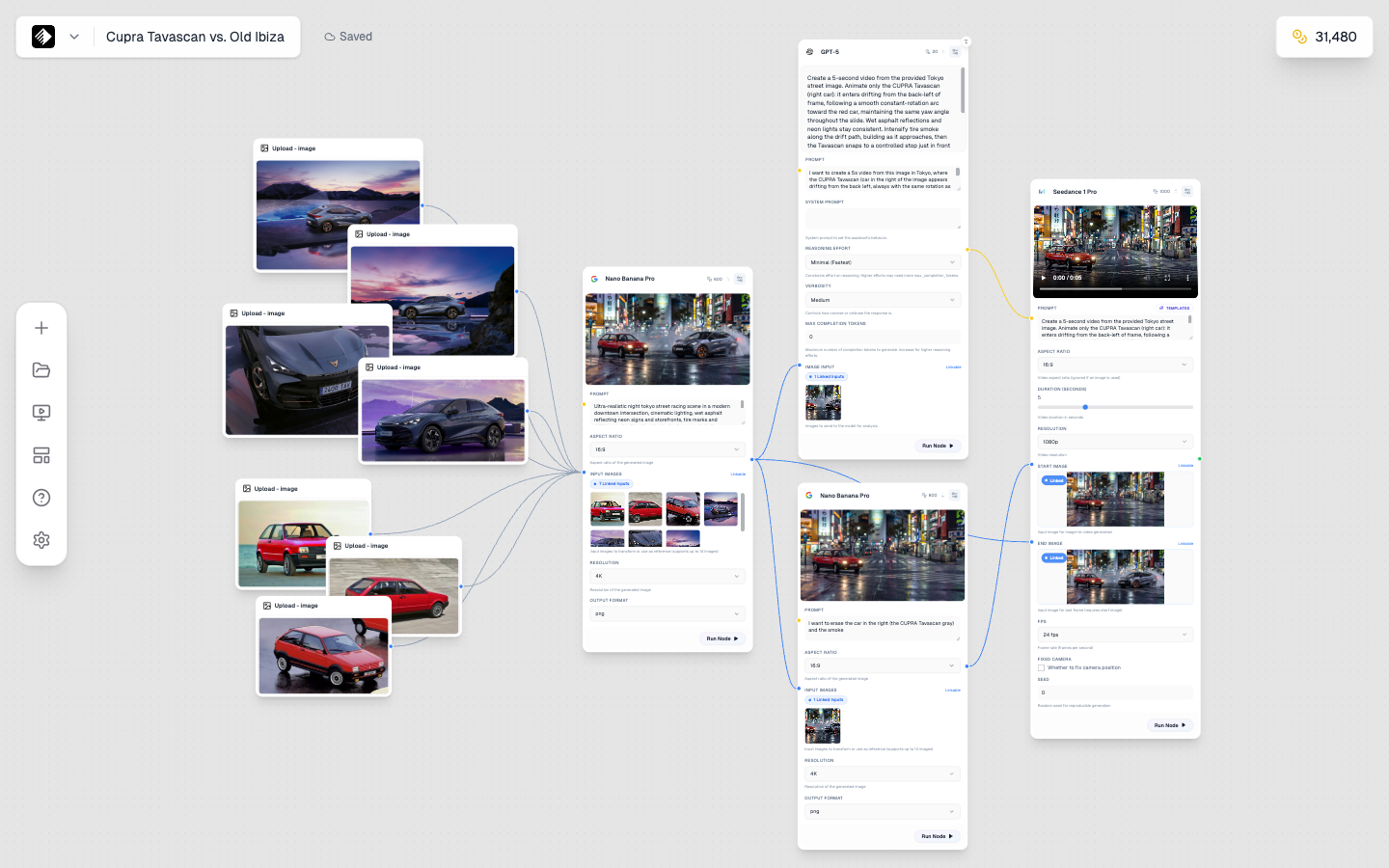
一个复杂工作流示例:多个节点连接在一起,包括 Upload 节点、图像生成、文本生成与视频创建。
在 Armox 中,一个 node 是 Canvas 工作流里的单个功能单元。每个 node:
- 有明确的 用途(文本输入、图像生成等)
- 有 输入(左侧)与 输出(右侧)
- 可以与其他 nodes 连接
- 有可配置的 settings
你可以把 nodes 当成积木,把它们连接起来就能构建复杂的创意工作流。
Node 类型概览
Armox 有六大类节点:
| Node Type | Purpose | Input | Output |
|---|---|---|---|
| Text | 写 prompts 或生成文本 | Text | Text |
| Image | 用 AI 生成图片 | Text, Image | Image |
| Video | 用 AI 生成视频 | Text, Image, Video | Video |
| Audio | 生成音乐或语音 | Text, Audio | Audio |
| Upload | 添加你自己的文件 | None | Image, Video, or Audio |
| Tool | 处理与增强内容 | Varies | Varies |
Text Nodes
Text nodes 用于写 prompts 或生成文本内容。
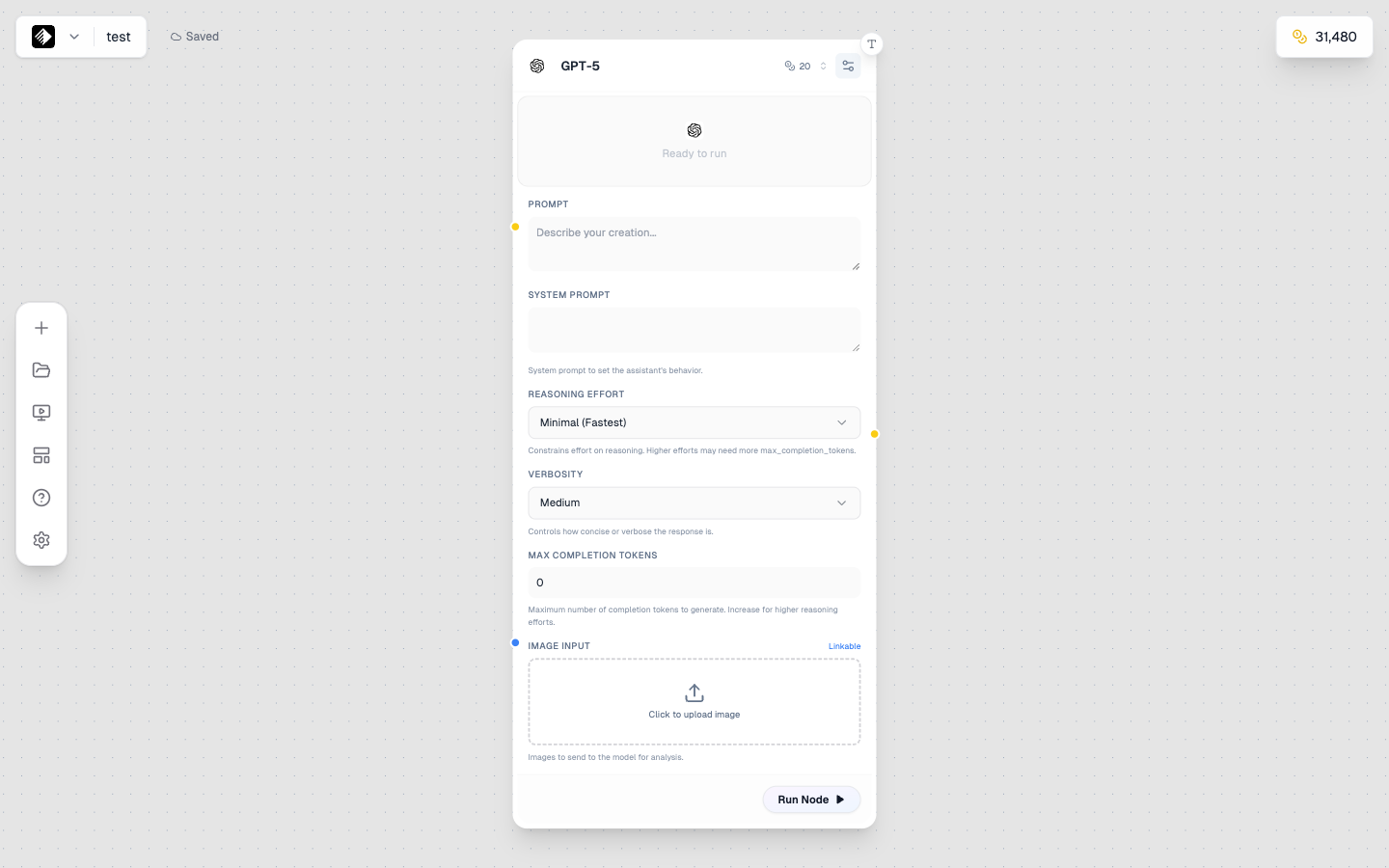
一个使用 GPT-5 的 Text node,用于 AI 文本生成。
两种模式(Two Modes)
- Manual Mode — 直接输入文本
- AI Mode — 用 AI 模型生成或优化文本
使用场景(Use Cases)
- ✍️ 为图像生成编写 prompts
- 📝 生成营销文案
- 🔄 改写/扩写想法
- 💬 生成 captions 或描述
Settings
- Mode Toggle — 在 manual / AI 模式间切换
- Model — 选择 AI 模型(GPT-5、Claude、Gemini 等)
- System Prompt — 引导 AI 行为
可用文本模型(Available Text Models)
| Model | Best For | Learn More |
|---|---|---|
| GPT-5 | Complex reasoning, coding, creative writing | GPT-5 Reference |
| Gemini 2.5 Flash | Fast responses, balanced performance | Gemini 2.5 Flash Reference |
| Claude 4.5 Sonnet | Nuanced writing, analysis, safety | Claude 4.5 Sonnet Reference |
| DeepSeek V3.1 | Code generation, cost-effective | DeepSeek V3.1 Reference |
| Grok 4 | Real-time info, conversational | Grok 4 Reference |
| Llama 3 70B | Open-source, high performance | Llama 3 70B Reference |
| Llama 3 8B | Lightweight, fast | Llama 3 8B Reference |
📚 查看全部文本模型: Text Models Reference
Output
Text nodes 输出 text(🟡 yellow connection),可连接到:
- Image nodes(作为 prompts)
- Video nodes(作为 prompts)
- Audio nodes(作为 text-to-speech 输入)
- 其它 text nodes(用于串联)
Image Nodes
Image nodes 使用 AI 模型生成图片。
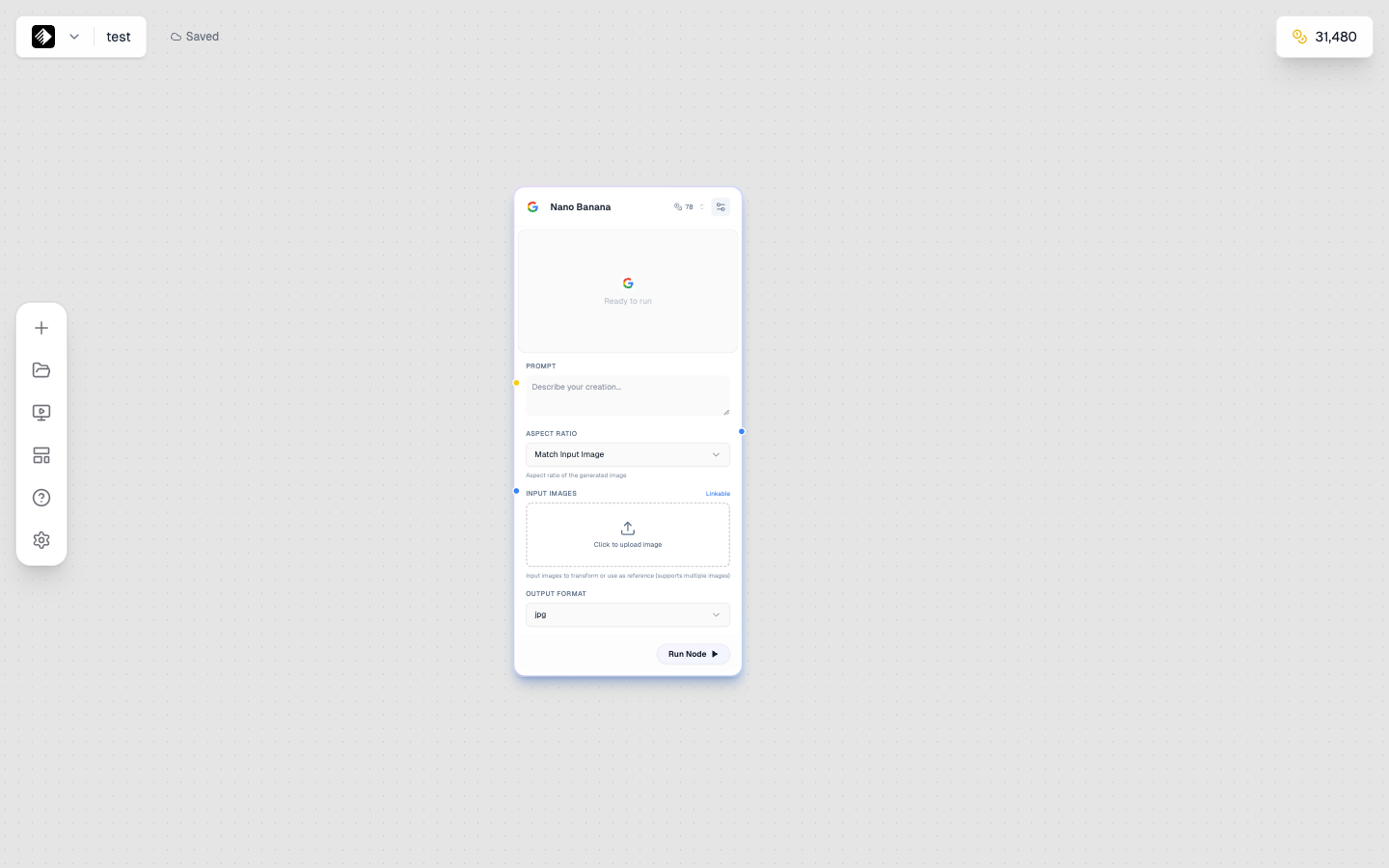
一个选择了 Nano Banana 的 Image node,用于图像生成。
能力(Capabilities)
- 🎨 文生图(text-to-image)
- 🖼️ 图生图(image-to-image)
- 📐 多种画幅比例(aspect ratios)
- 🎭 多种风格与审美
Settings
| Setting | Description |
|---|---|
| Model | AI model(Flux、Nano Banana、SDXL 等) |
| Aspect Ratio | 输出尺寸(1:1、16:9、9:16 等) |
| Guidance Scale | 对 prompt 的贴合程度 |
| Style | 预设风格(因模型而异) |
可用图像模型(Available Image Models)
| Model | Best For | Learn More |
|---|---|---|
| Nano Banana Pro | Highest quality, Google's flagship | Nano Banana Pro Reference |
| Nano Banana | Fast, high-quality generation | Nano Banana Reference |
| Flux 2 Pro | Professional quality, versatile | Flux 2 Pro Reference |
| Flux 2 Flex | Flexible, balanced performance | Flux 2 Flex Reference |
| Flux 1.1 Pro Ultra | Ultra high resolution | Flux 1.1 Pro Ultra Reference |
| Seedream 4.5 | Artistic styles, anime | Seedream 4.5 Reference |
| Wan 2.2 Image | Realistic, detailed imagery | Wan 2.2 Image Reference |
| Grok 2 Image | Creative, fast generation | Grok 2 Image Reference |
| Qwen Image | Vision-language, multimodal | Qwen Image Reference |
| Stable Diffusion XL | Open-source, customizable | SDXL Reference |
| Flux Kontext Max | Context-aware editing | Flux Kontext Max Reference |
📚 查看全部图像模型: Image Models Reference
Inputs
- Prompt(required)— 描述你想要的图片
- Reference Image(optional)— 用于风格或内容参考
Output
Image nodes 输出 image(🔵 blue connection),可连接到:
- Video nodes(用于 image-to-video)
- Tool nodes(用于处理)
- 其它 image nodes(用于串联)
Video Nodes
Video nodes 用于生成 AI 视频。
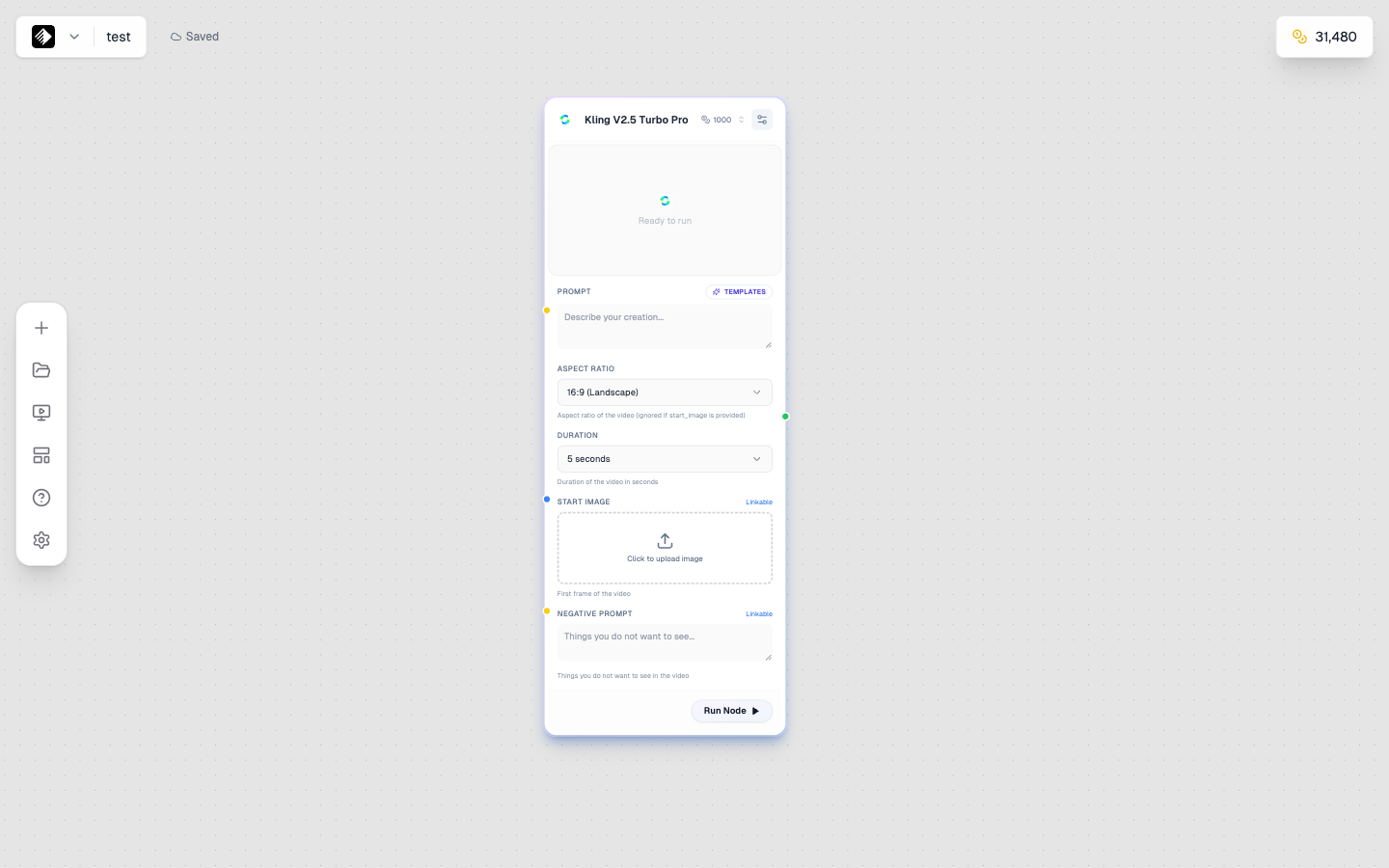
一个使用 Kling V2.5 Turbo Pro 的 Video node,用于高质量视频生成。
能力(Capabilities)
- 📝 文生视频(text-to-video)
- 🖼️ 图生视频(image-to-video)
- 🎬 多种时长与分辨率
- 🔊 部分模型包含音频
Settings
| Setting | Description |
|---|---|
| Model | AI model(Kling、Veo、Seedance、Sora 等) |
| Duration | 视频时长(5s、10s 等) |
| Resolution | 输出质量 |
| FPS | 帧率 |
可用视频模型(Available Video Models)
| Model | Best For | Learn More |
|---|---|---|
| Kling 2.6 Pro | Cinematic quality, long duration | Kling 2.6 Pro Reference |
| Kling V2.5 Turbo Pro | Fast, high-quality video | Kling V2.5 Turbo Pro Reference |
| Veo 3.1 | Google's flagship, highest quality | Veo 3.1 Reference |
| Veo 3.1 Fast | Fast Google video generation | Veo 3.1 Fast Reference |
| Seedance 1 Pro | Anime, stylized content | Seedance 1 Pro Reference |
| Wan 2.6 T2V | Text-to-video, versatile | Wan 2.6 T2V Reference |
| Wan 2.6 I2V | Image-to-video animation | Wan 2.6 I2V Reference |
| Sora 2 Pro | OpenAI's flagship video model | Sora 2 Pro Reference |
| Hailuo 2.3 | Fast image animation | Hailuo 2.3 Reference |
| Gen4 Aleph | Runway's professional video | Gen4 Aleph Reference |
📚 查看全部视频模型: Video Models Reference
Inputs
- Prompt(required)— 描述你想要的视频
- Reference Image(optional)— 起始帧或风格参考
- Audio(optional)— 部分模型支持音频输入
Output
Video nodes 输出 video(🟢 green connection),可连接到:
- Tool nodes(用于处理)
- 其它 video nodes(用于串联)
Audio Nodes
Audio nodes 用于生成音乐、语音与音效。
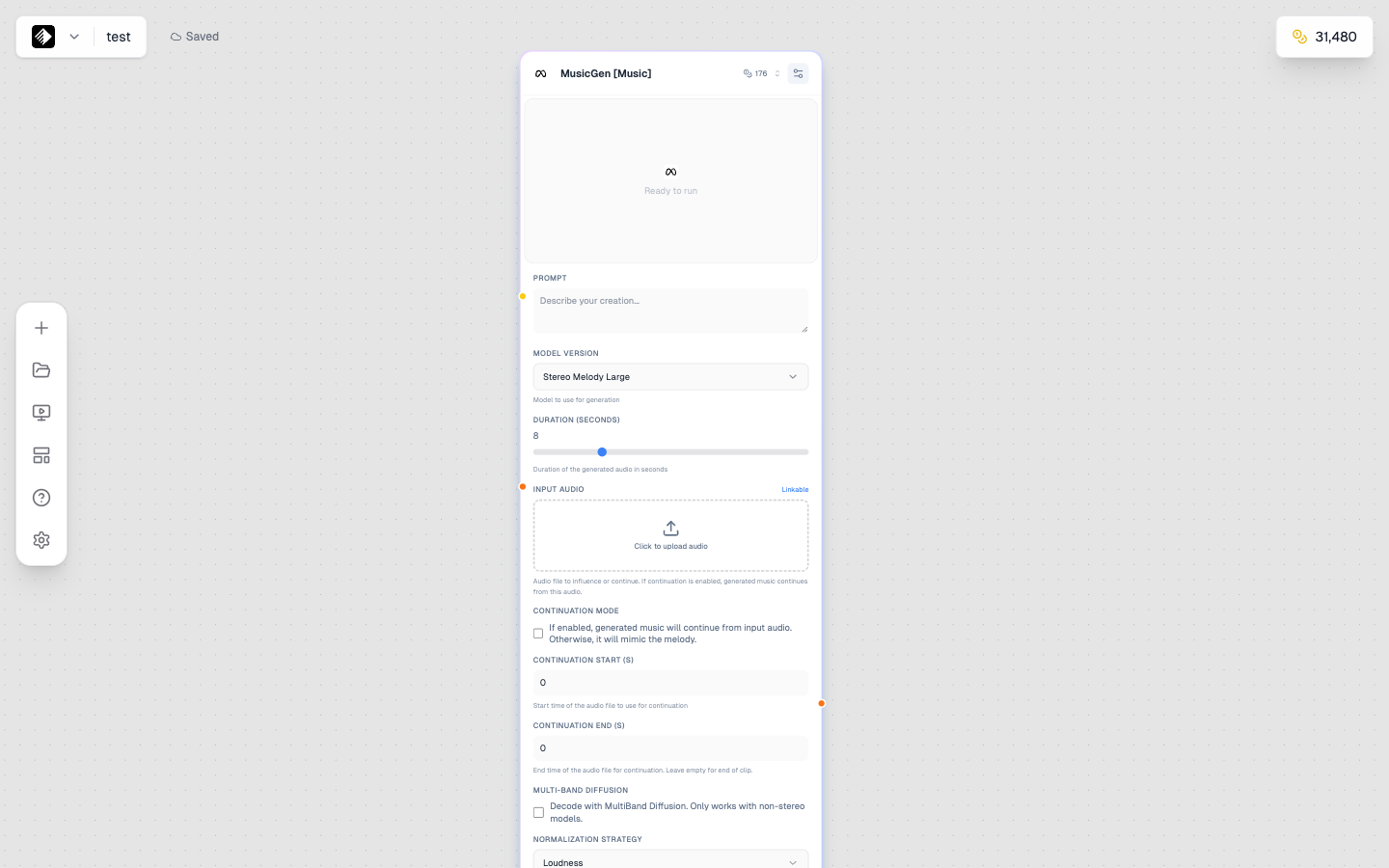
一个使用 MusicGen 的 Audio node,用于音乐生成。
能力(Capabilities)
- 🎵 音乐生成
- 🗣️ 文本转语音(TTS)
- 🎙️ 声音克隆
- 🔊 音效
Settings
| Setting | Description |
|---|---|
| Model | AI model(MusicGen、Speech-02、Lyria 等) |
| Duration | 音频时长 |
| Voice | 声音选择(语音模型) |
| Style | 音乐类型或氛围 |
可用音频模型(Available Audio Models)
| Model | Best For | Learn More |
|---|---|---|
| MusicGen | Music generation, versatile | MusicGen Reference |
| Music 1.5 | Advanced music generation | Music 1.5 Reference |
| Music-01 | Professional music creation | Music-01 Reference |
| Lyria 2 | Google's music model, high quality | Lyria 2 Reference |
| Speech-02 HD | High-quality text-to-speech | Speech-02 HD Reference |
| Speech-02 Turbo | Fast text-to-speech | Speech-02 Turbo Reference |
| Voice Cloning | Clone any voice | Voice Cloning Reference |
| XTTS-v2 | Multilingual speech | XTTS-v2 Reference |
📚 查看全部音频模型: Audio Models Reference
Inputs
- Prompt(required)— 文本描述或脚本
- Reference Audio(optional)— 用于声音克隆或风格匹配
Output
Audio nodes 输出 audio(🟠 orange connection),可连接到:
- Video nodes(用于加声音)
- Tool nodes(用于处理)
Upload Nodes
Upload nodes 让你把自己的文件引入工作流。
能力(Capabilities)
- 📤 上传图片、视频或音频
- 🖱️ 支持拖拽上传
- 📁 用你的资产作为 AI 输入
支持格式(Supported Formats)
| Type | Formats |
|---|---|
| Image | JPG, PNG, WebP, GIF |
| Video | MP4, MOV, WebM |
| Audio | MP3, WAV, M4A |
Output
输出类型取决于你上传的文件:
- 上传 image → 🔵 Blue(image)输出
- 上传 video → 🟢 Green(video)输出
- 上传 audio → 🟠 Orange(audio)输出
使用场景(Use Cases)
- 🖼️ 风格迁移参考图
- 🎬 需要处理的视频
- 🎤 用于声音克隆的音频样本
- 📷 需要增强的产品照片
Tool Nodes
Tool nodes 用于处理与增强已有内容。
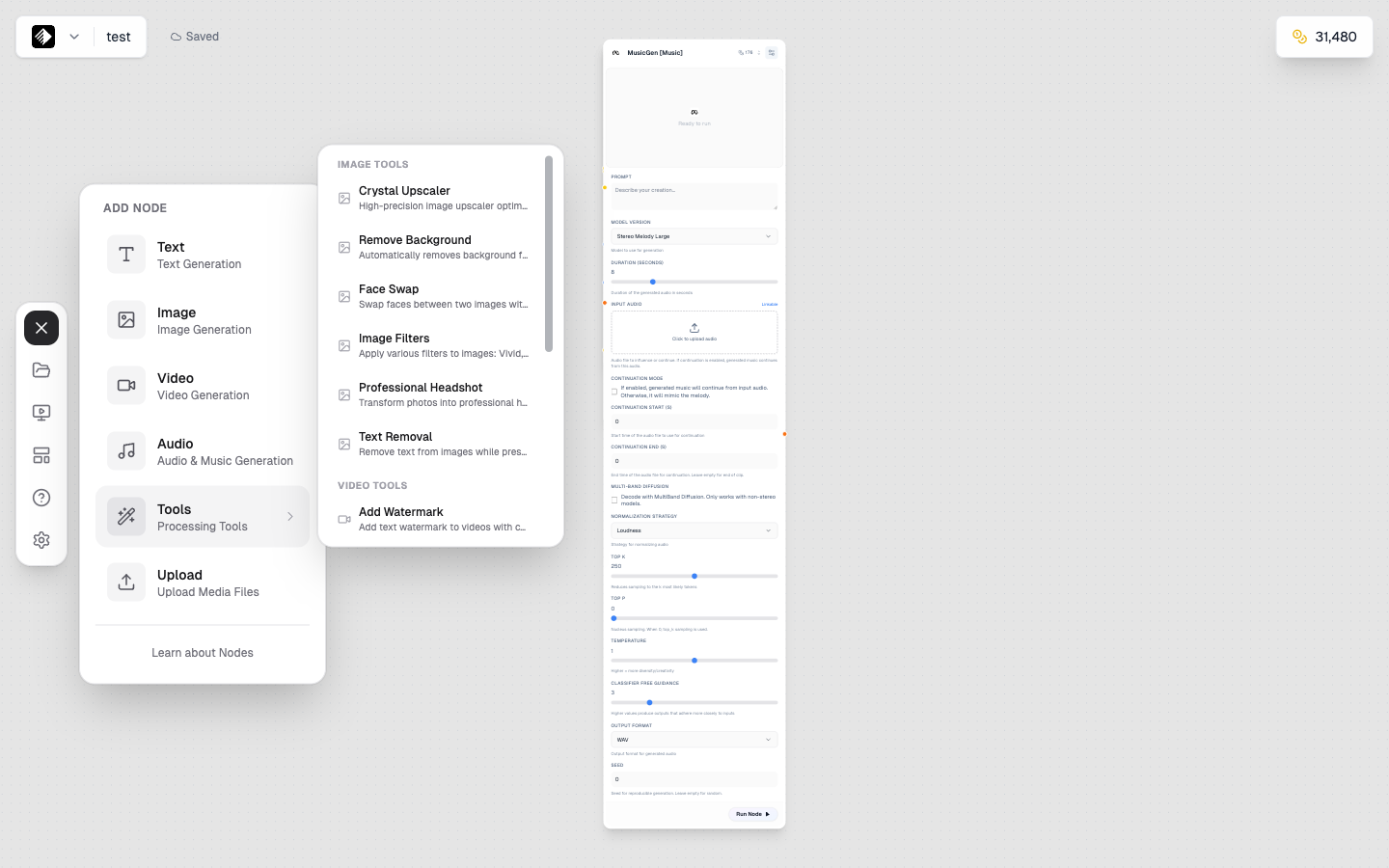
Tools 子菜单:包含 Image Tools 与 Video Tools 两大类。
可用 Image Tools
| Tool | Purpose | Learn More |
|---|---|---|
| Crystal Upscaler | Enhance image resolution up to 4x | Crystal Upscaler Reference |
| Remove Background | Remove backgrounds from images | Remove Background Reference |
| Face Swap | Swap faces between images | Face Swap Reference |
| Image Filters | Apply artistic effects and filters | Image Filters Reference |
| Professional Headshot | Transform photos into headshots | Professional Headshot Reference |
| Text Removal | Remove text from images | Text Removal Reference |
| Add Watermark | Add watermarks to images | Add Watermark Reference |
可用 Video Tools
| Tool | Purpose | Learn More |
|---|---|---|
| Video Upscale [Runway] | Enhance video resolution | Video Upscale Runway Reference |
| Video Upscale [Topazlabs] | Professional video upscaling | Video Upscale Topaz Reference |
| Lip Sync Pro | Sync lips to audio | Lip Sync Pro Reference |
| Auto Caption | Generate video captions | Auto Caption Reference |
| Replace Character [Wan-2.2] | Replace characters in video | Replace Character Reference |
| Motion Transfer [Wan-2.2] | Transfer motion between videos | Motion Transfer Reference |
| Merge Videos | Combine multiple videos | Merge Videos Reference |
📚 查看全部工具: Tools Reference
什么时候用 Tools?
- 🔍 Upscaling — 放大并提升清晰度
- ✂️ Background Removal — 抠出主体
- 🎭 Face Swap — 换脸
- 🎨 Filters — 加滤镜效果
- 📝 Captions — 加字幕
- 👄 Lip Sync — 口型对齐音频
连接端口(Connection Handles)
节点的彩色端口代表不同数据类型:
| Color | Data Type | Example |
|---|---|---|
| 🟡 Yellow | Text | Prompts, captions, scripts |
| 🔵 Blue | Image | Photos, graphics, art |
| 🟢 Green | Video | Clips, animations |
| 🟠 Orange | Audio | Music, speech, sounds |
连接规则(Connection Rules)
- 从输出到输入 — 总是从右侧(output)连到左侧(input)
- 类型匹配 — 通常颜色应匹配(🔵 连 🔵)
- Text 更灵活 — Text(🟡)可作为 prompt 连接到多数输入类型
- 部分节点支持多类型输入 — 以输入端口为准
在 Canvas 中添加节点
方法 1:拖拽
- 打开左侧 node sidebar
- 找到你要的 node 类型
- Drag 到画布上
方法 2:点击添加
- 打开 node sidebar
- Click 一个 node 类型
- 节点会出现在视图中心
方法 3:右键菜单
- 在画布上 Right-click
- 从菜单选择 node 类型
节点状态(Node States)
节点会显示不同状态:
| State | Appearance | Meaning |
|---|---|---|
| Idle | Normal | 准备运行 |
| Running | Spinning indicator | 正在生成 |
| Complete | Shows result | 生成完成 |
| Error | Red indicator | 出现错误 |
最佳实践(Best Practices)
从简单开始
先用两节点工作流练手:
- Text → Image
- Upload → Tool
- Text → Video
先想清楚再搭建
添加节点前先明确:
- 输入是什么?(text、image 等)
- 你想要的输出是什么?
- 需要哪些处理步骤?
保持整洁
- 节点从左到右排列
- 节点间留出空间
- Canvas 命名要清晰
下一步
理解 nodes 后继续学习:
- The Canvas Editor — 掌握完整工作流环境
- Connecting Nodes — 构建复杂工作流
- AI Models Overview — 理解 Armox 的 AI 模型体系
AI Models Reference
查看每个 AI 模型的详细文档:
- Text Models — GPT-5、Claude、Gemini 等
- Image Models — Flux、Nano Banana Pro、SDXL 等
- Video Models — Kling、Veo、Sora 等
- Audio Models — MusicGen、Speech-02、Lyria 等
- Tools — Upscaler、抠图等工具