
Hunyuan3D V3
Transform your photos into ultra-high-resolution 3D models in seconds. Film-quality geometry with PBR textures, ready for games, e-commerce, and 3D printing.
Overview
| Property | Value |
|---|---|
| Cost | 800 credits |
| Modality | 3D Model |
| Output Format | GLB (GLTF Binary) |
| Modes | Image-to-3D, Sketch-to-3D, Text-to-3D |
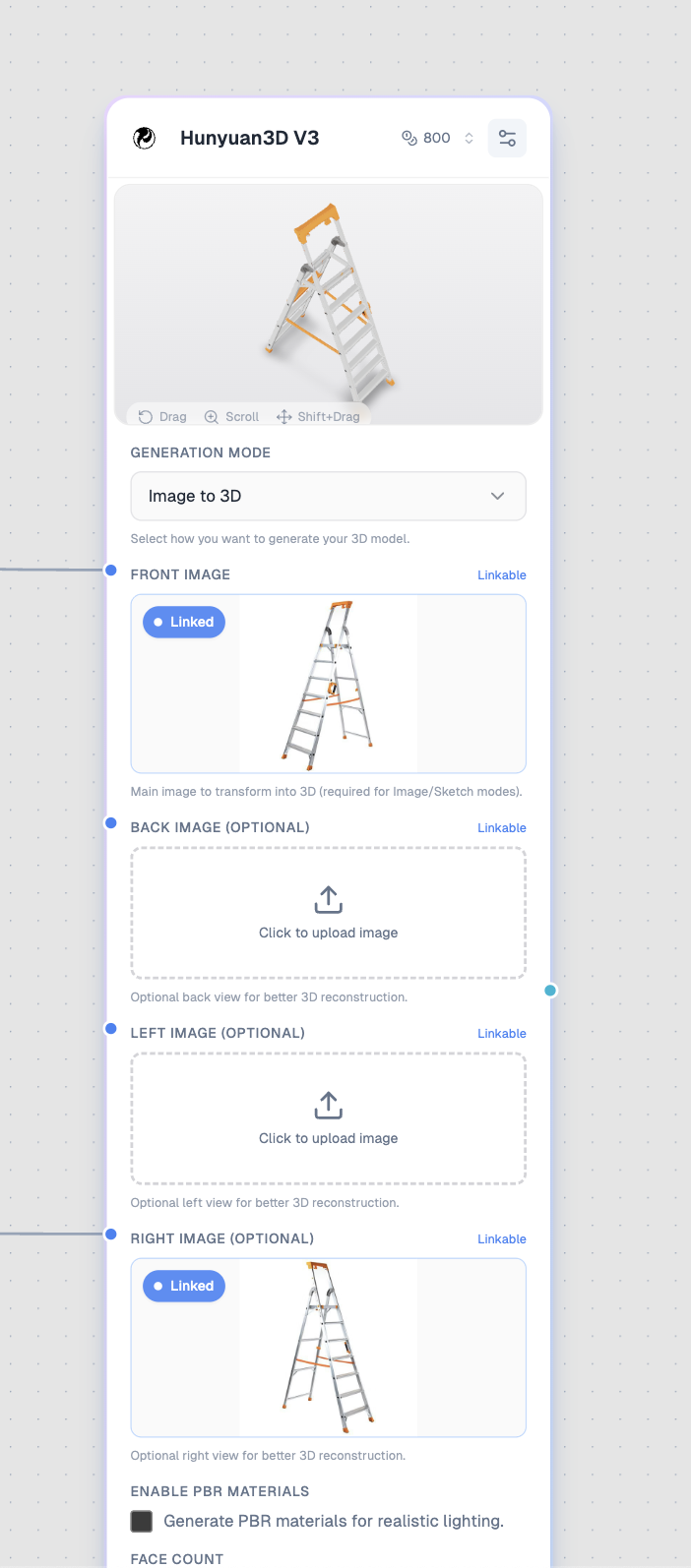
The Hunyuan3D V3 node with Image-to-3D mode and multi-view input support.
What It's Best For
- E-commerce — Create interactive 3D product views
- Game development — Generate game-ready 3D assets
- 3D printing — Create printable models from photos
- AR/VR — Build immersive experiences
- Product visualization — Showcase products in 3D
Generation Modes
Hunyuan3D V3 supports three different generation modes:
Image to 3D
Transform photos into detailed 3D models. Supports up to 4 view angles for better reconstruction.
Inputs:
- Front Image (required) — Main image to transform
- Back Image (optional) — Back view for better accuracy
- Left Image (optional) — Left side view
- Right Image (optional) — Right side view
Best for: Product photos, objects, characters with clear shapes
Sketch to 3D
Convert line art or sketches into fully-textured 3D models.
Inputs:
- Front Image (required) — Your sketch or line art
- Prompt (required) — Describes colors, materials, and details
Best for: Concept art, character designs, quick prototyping
Text to 3D
Generate 3D models directly from text descriptions.
Inputs:
- Prompt (required) — Detailed description of the 3D model
Best for: Quick concepts, ideation, generating objects from imagination
Configuration
Generation Mode
Type: Select
Default: Image to 3D
| Mode | Use Case |
|---|---|
| Image to 3D | Convert photos to 3D |
| Sketch to 3D | Line art to textured 3D |
| Text to 3D | Generate from description |
Enable PBR Materials
Type: Toggle
Default: Off
Generate Physically Based Rendering materials for realistic lighting in 3D engines.
| Setting | Effect |
|---|---|
| Off | Standard textures |
| On | PBR materials (metallic, roughness, normal maps) |
Enable for: Unity, Unreal Engine, Blender, professional 3D software
Face Count
Type: Slider
Default: 500,000
Range: 40,000 - 1,500,000
Control the polygon complexity of the generated model:
| Range | Quality | Use Case |
|---|---|---|
| 40K - 200K | Low | Mobile games, web 3D, AR |
| 200K - 500K | Medium | Standard quality, most uses |
| 500K - 1M | High | Detailed models, close-ups |
| 1M - 1.5M | Ultra | Maximum detail, hero assets |
Generation Type
Type: Select
Default: Normal
Available in: Image-to-3D, Text-to-3D modes
| Type | Description |
|---|---|
| Normal | Fully textured model with colors |
| LowPoly | Reduced polygons, stylized look |
| Geometry | White model without textures |
Polygon Type
Type: Select
Default: Triangle
Available when: Generation Type is LowPoly
| Type | Description |
|---|---|
| Triangle | Standard triangulated mesh |
| Quadrilateral | Quad-based mesh (better for subdivision) |
Output
Type: 3D Model (GLB)
Connection Color: 🔵 Cyan
The output is a GLB file containing:
- 3D geometry (mesh)
- Textures (diffuse/albedo)
- PBR materials (if enabled)
- UV mapping
Viewing the Model
After generation:
- Interactive preview in the node
- Drag to rotate
- Scroll to zoom
- Shift+Drag to pan
- Fullscreen for larger view
- Download to save GLB file
Multi-View Reconstruction
For best Image-to-3D results, provide multiple views:
Front View ─┬→ [Hunyuan3D V3]
Back View  ─┤
Left View  ─┤
Right View ─┘
Multi-View Tips
| View | Purpose |
|---|---|
| Front | Main shape and primary textures |
| Back | Back details, hidden surfaces |
| Left | Side profile, depth information |
| Right | Symmetry verification, side details |
Best practices:
- Use consistent lighting across all views
- Keep the object centered
- Maintain similar distance/zoom
- Use clean, neutral backgrounds
Use Cases
E-Commerce Product View
Create interactive 3D product displays:
- Photograph product from front (required)
- Add back and side views if available
- Enable PBR Materials for realistic lighting
- Set Face Count to 500K for good detail
- Download GLB for your e-commerce platform
Game Asset Creation
Generate game-ready 3D assets:
- Use Text to 3D for quick concepts
- Or Image to 3D for specific objects
- Set Generation Type to LowPoly for games
- Adjust Face Count based on target platform
- Import GLB into Unity/Unreal
Character from Concept Art
Turn character sketches into 3D:
- Upload character sketch as Front Image
- Select Sketch to 3D mode
- Write detailed prompt:
Warrior character with silver armor, red cape, blue gemstone on chest plate, leather boots, metallic and fabric materials - Enable PBR Materials
- Run and refine
3D Printing Preparation
Create printable models:
- Use Geometry mode for solid shapes
- Higher Face Count (1M+) for detail
- Verify model in Blender/mesh repair tool
- Export for slicing software
Prompt Examples
Text-to-3D Prompts
Product:
A sleek wireless earbud case, matte black finish with
subtle LED indicator, rounded corners, modern minimal design
Character:
A cartoon robot companion, friendly rounded design,
blue metallic body, glowing yellow eyes, antenna on head
Environment Prop:
A medieval wooden barrel with iron bands, weathered oak,
rope handles on sides, slight wear and tear details
Sketch-to-3D Prompts
When using Sketch mode, describe what the sketch represents:
An orange tabby cat with white paws and chest,
fluffy fur texture, green eyes, sitting pose
A fantasy sword with golden hilt, silver blade,
ruby gemstone in the pommel, ornate engravings
Tips for Best Results
Image-to-3D
- Use high-resolution images — More detail = better model
- Clean backgrounds — White or neutral backgrounds work best
- Good lighting — Even, diffused lighting avoids harsh shadows
- Multiple views — Dramatically improves accuracy
- Clear objects — Avoid occlusions and overlapping elements
Sketch-to-3D
- Clean line art — Clear, defined lines work best
- Detailed prompts — Describe colors, materials, textures
- Simple shapes first — Complex sketches may lose detail
- Specify materials — "Metallic", "wooden", "fabric", etc.
Text-to-3D
- Be specific — Describe shape, size, proportions
- Mention materials — What is it made of?
- Include details — Buttons, handles, patterns
- Reference real objects — "Like a vintage radio" helps
Pricing Considerations
At 800 credits, Hunyuan3D V3 is a premium model. Use wisely:
Good uses (800 credits):
- ✅ Final production assets
- ✅ Client deliverables
- ✅ E-commerce products
- ✅ Game-ready models
Consider alternatives for:
- ❌ Quick concept testing
- ❌ Early ideation
- ❌ Rough prototypes
Technical Specifications
| Specification | Value |
|---|---|
| Output Format | GLB (GLTF Binary) |
| Texture Resolution | Up to 4K |
| Polygon Range | 40K - 1.5M faces |
| PBR Support | Yes (optional) |
| Multi-View Input | Up to 4 images |
| Processing Time | ~30-60 seconds |
Compatibility
The GLB output works with:
| Software | Support |
|---|---|
| Unity | Full support with PBR |
| Unreal Engine | Full support with PBR |
| Blender | Full support |
| Three.js | Full support (web) |
| Sketchfab | Full support |
| Adobe Dimension | Full support |
| 3D printing slicers | Geometry mode recommended |
Common Issues
Model Looks Flat or Missing Details
- Add more view images (back, left, right)
- Increase face count
- Use higher resolution input images
Textures Don't Match Input
- Use cleaner, well-lit photos
- Ensure consistent lighting across views
- For sketches, write more detailed prompts
Model Has Holes or Artifacts
- Input images may have occlusions
- Try different angles
- Use Geometry mode and repair in 3D software
Download Not Working
- GLB files can be large (up to 100MB)
- Wait for full download
- Try the fullscreen gallery download button
Related Resources
- 3D Nodes Guide — Complete 3D workflow guide
- Canvas Editor — Master the visual editor
- Connecting Nodes — Build complex workflows